Wednesday, January 3, 2018
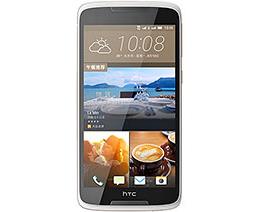
How to Screenshot HTC Desire 828 dual sim without any App
How to Screenshot HTC Desire 828 dual sim without any App
Take a Screenshot HTC Desire 828 (dual sim)
Steps to capture a screenshot on Desire 828 dual simFirst step is to go to screen which you want to capture.
Default Android Method
- Press Power and Volume down keys together
- Make sure you hold both keys for 2 seconds
- A Polaroid animation is displayed and shutter sound will come which means screenshot has been taken
HTC Method
- Another method is to press Power button and Home Key
- Follow similar instructions given previous method
- If screenshot is not taken, try to repeat steps again
You can slide down the notification shade, and view the image. Or you can press on share to share it with any application of your choosing. If it doesnt work, make sure youre pressing the home key and power key at exactly the same time.
Where the pictures are stored?
The image is saved in the Screenshots album in Gallery.Screen is 5.5 inches supporting 1080 x 1920 pixels plus corning protected which is great advantage. The Viewing angles are pretty good as well. There are not tweaks to the Android operating system which works well with default HTC Touch sense. With up to 200 GB of memory available to the user and the ability to add a microSD card, there is no complaining about the storage here. 16 GB of internal space is sufficient for a normal Android User.
Phone comes with 13MP camera with LED flash packed on the rear and a 4MP fixed focus camera on the front. This Smartphone is capable of shooting great videos at 1080p@30fps. Backing up the HTC Desire 828 dual sim is a 2800 mAh battery.
At $250, this is a good looking phone that promises decent all round performance. Overall, there�s little to complain about the HTC Desire 828 dual sim from the perspective of a basic Android user.

How To Send Anonymous Messages with Sarahah App
How To Send Anonymous Messages with Sarahah App
 Sarahah, an app which lets people send constructive feedbacks or messages anonymously has been currently trending on both Google Play Store as well as Apple app Store. Sarahah is an app which was developed by a Saudi programmer Zain al-Abidin Tawfiq. This app has been named Sarahah based on an Arabic word which translates to �frankness� or �candour�. The name of the app resembles the working of the app as well which is to give frank answers towards another person as the person�s identity will not be revealed. This app was launched some time ago but the app started to gather people�s attention in the month of June this year. Currently, it is one of the most downloaded apps on the Google Play Store with over 10 million app downloads already.
The developers of the Sarahah app have described the app as a platform that �helps you in discovering your strengths and areas of improvement by receiving honest feedback from your employees and your friends in a private manner�. This is done as the app does not store the username or passwords of the sender. Instead, anyone can visit the link and comment to give anonymous feedback.
Talking about Sarahah, it is a very simple app to setup and use for sending out anonymous messages. Some of the features of the Sarahah app include saving the anonymous messages, searching for various people that already use Sarahah through the app�s search feature and also choosing the audience from which you get the messages only.
First of all, when a user wants to create a way for people to send anonymous messages then the app lets you log in or register a new account. If the user has not registered on Sarahah yet, the app will let you register and a new account will be created. In order to fill out the registration form, the app will ask a user for the username which is usually the name of the person followed by .sarahah.com. Do note that this username can be accessed via a browser as well as the app has a website also. The usernames are generally set as example.sarahah.com. Other details for registration include Name, Email, and Password.

After registration, you can receive anonymous messages by giving a link to the Sarahah username on various social media platforms like Facebook and Twitter. The other screens on the Sarahah app are pretty barebones as the main purpose of the app is to give anonymous messages only.

In the settings of Sarahah app, you can set notification sound to turn on or off and also see the notification preview. The app also lets you select if you want to feature in search results so that anyone can post on your username. Other than that, the app has the option to select language and connect with the official Sarahah accounts on Twitter and Facebook.

Sarahah also lets you search for the other users of Sarahah of they have turned on the option to allow other users search for your username.

Sarahah app has an explore tab as well which is currently just a place holder and the screen reads soon. We have not known what this explore tab will feature but the description says that this explore feature will be available in the next update.
This app is very good for sending and receiving constructive messages about a person as the identity is kept anonymous. This app is currently available on the Google Play Store for free.

Tuesday, January 2, 2018
How to Play the Name That Tune Game App
How to Play the Name That Tune Game App
 SongPop requires knowledge of popular music and fast fingers but does not require skill like the hit game app, Draw Something. Unlike the Draw Something game app where people are faced with their insecurities about their drawing ability, SongPop appeals to anybody who has enjoyed listening to music over the years.
SongPop is for people of all ages. There are songs from the 50s, 60s, 70s, 80s and 90s, as well as modern rap and todays hits. It comes in a free version or the premium version can be downloaded for $1.99. The premium version is ad-free, lets you challenge more players and have more games going at the same time, plus it offers longer song clues to help you guess. The free version is ad supported. This is the good news and the bad news. In SongPop Free, you are "paid" 5 game coins to watch a video ad for another app. The ad-free version doesnt give you the opportunity to earn the game coins.
How SongPop is played
Once you sign in using your Facebook account or by creating a SongPop account linked to your email, you are ready to go. You can challenge someone you know by choosing a friend from Facebook. Click on "playing" to see which of your Facebook friends that are already playing SongPop. You can also send an email to invite a friend to play a game. If you get addicted, like I do, you can choose to challenge random players.
Once you challenge another player, the game goes like this:
- Choose a playlist from a list of three, or pay game coins to "shuffle" and get other playlists.
- A song will start to play.
- As quickly as you can, choose the right name of the song, or singer/band that played that song from a list of 5 answers.
- There will be 5 songs in each game.
- A summary appears with which answers you got correct, and which were wrong and how quickly you guessed each song.
- You receive points for each song guessed correctly and bonus points for guessing several songs in a row without a wrong guess.
- Send the challenge to your opponent.
- Your opponent makes their guesses and its appears in your game list when its your turn again.
- You are sent your challengers answers and how quickly they guessed, displayed with your results and a tally of both players scores.
- If you win, you get three coins. If you lose you still get one coin.
- Its now time to play your opponents challenge game. You take turns playing the other persons challenge game and sending a game back to them.
- A weekly scoreboard shows you a weekly count of how many games each player has won and starts over each Sunday night.
You begin the game with 6 playlists and a limited number of songs in each playlist. As you correctly guess several songs in a row, more songs will be added to that playlist. More playlists can be bought with game coins that you earn by playing challenges or watching ad videos in the free version. Or, for those who cant wait to earn game coins, you can buy game coins with real cash. A playlist costs about 250 to 400 game coins which will run about $1.99 in real money.
Why its so much fun
SongPop is addictive. Its fun to hear old songs, cleaning out cobwebs of your mind to remember song titles, who sang them, or in what movie soundtrack they were included. This is the kind of game that is good for us by engaging our memory, which keeps our aging brains active. It can also make you young by inspiring you to listen to current song titles so your kids dont obliterate you in challenges of todays hits. If there is one drawback of SongPop, its that you cant play the game surreptitiously like you can with Draw Something, or Words With Friends. Nonetheless, youll enjoy the challenge, playful rivalries, and remembering songs you may have thought you had forgotten.
Sunday, December 31, 2017
HTC Clock v2 00 1 Symbian 3 Nokia N8 C6 C7 E7 Full Version App Download
HTC Clock v2 00 1 Symbian 3 Nokia N8 C6 C7 E7 Full Version App Download

- Display HTC CLock and weather on homescreen
Whatss News:
- New Clock style
HOW TO REMOVE HTC CLOCK FROM HOMESCREEN:
- Install Jbak Taskman from here
- Click menu --> tools --> processes
- Try to find "___[20027d3c]"
- Click Menu --> Terminate process
- And It will close
Click below to download
Saturday, December 30, 2017
iLauncher v2 1 12 Apk App
iLauncher v2 1 12 Apk App
Requirements: 2.1+
Overview: This is an iPhone style home screen.
�FEATURES
�- Smooth scrolling
�- Icons have rounded corners and gloss effects.
�- Long touch icons to move them around and position them as you like.
�- Dock-bar
�- Easily uninstall apps from your home screen.
�- Press the back button to exit edit mode.
�- Can change each applications name and icon
�- Spotlight search
�- Folders
�- Shortcuts
�Whats in this version:
�v2.1.12
�- Improved icon qualities on MDPI devices with Android 4.0 or higher.
�- Now uses less memory with jiggle mode on Android 3.0 or higher.
�- Modified some parts of memory management.
�- Fixed some crashes.
https://play.google.com/store/apps/details?id=net.suckga.iLauncher2
Download Instructions:
http://www.filedownloads.org/u0pack0...as112.apk.html
�Mirror:
http://rapidgator.net/file/49131238/ill2as112.apk.html
iCon Wallpaper Dressup Cocoppa APK Android App Free Download
iCon Wallpaper Dressup Cocoppa APK Android App Free Download
iCon Wallpaper Dressup-Cocoppa APK contains more than hundred thousand wallpapers and icons.

iCon Wallpaper Dressup-Cocoppa Apk App For Android Free Download Full Version
And this collection of icons and wallpapers beautifies your home screen.iCon Wallpaper Dressup-Cocoppa is useful in these conditions:
- For making stylish wallpaper.
- When you want to make eye-catching icons.
- When you have it, then the creation of shortcut icons becomes an easy task.
- You can even use this Android software for making of SNS cover photo.
- Actually, it is packed CocoPPa that works as a tool to create home and lock screens.
- Free Aquarium Live Wallpaper APK Full Download
- Transparent Screen App For Android Free Download
- Download 4K Wallpapers For Android App Free
- Download HD Wallpapers Android App Free
Friday, December 29, 2017
How to Increase Android Internal Memory App Storage Space with Screenshot
How to Increase Android Internal Memory App Storage Space with Screenshot

So many android users are facing problem with there internal application storage space. Not enough space in the internal storage, So here i am show you the solution to overcome this problem.
Actually you cant increase your internal storage memory on your android phone, So we can use external memory card to store entire
applications. For this we are using one app called link2SD.
PREREQUISITES
- You need to partition your external memory card
- You need to root your Android divice
- link2SD App on your android divice (you can get it from play store)
- Download Minitools partition wizard
- Use a card reader and plug the reader in your pc (dont use your phone)
- Open minitool partition wizard and select your memory card
- Right click on the memory card and select move/resize. One window will open

- If your memory card is 8gb or more give unallocated spce 2048 (2gb) and click ok.

- Right click on unallocated space and click create , one window will open.


- Then click ok, and you can see one apply icon on left top corner, click apply. you are done. Now remove your memory card and insert it in your mobile.

- Download kingo Android root in your computer
- Connect your mobile with data cable, in your mobile Go to settings> Developer option> USB debugging

- Then open kingo root app on your PC, click root

- Successful message will show on the screen. You are done.

- Install link2SD on your mobile from playstore

- Open link2SD, One message will show when first opening of link2SD, tick Ext2 column and press ok.

- Now you can move all the applications from your phone memory to partitioned external memory space.

- Now click the application which one you want to move to external sd card, And click link to sd card and tick all the column then press ok.
- You are successfully done. now you can move high memory applications to external storage space and free up internal storage. you can download any size of game to phone.
- Yo can check storage space from, click 3 dotes(top right side) and storage info.

- If you have any doubt please comment it below.
How To Install Run Android Application And Games In Windows PC Via BlueStacks App Player
How To Install Run Android Application And Games In Windows PC Via BlueStacks App Player
It�s not a dual-boot solution, BlueStacks gives you the ability to launch Android like you�d launch any other Windows application. BlueStacks App Player has some preloaded Android application, but you also can manually install and run other Android apk on your windows PC. Here is instruction on how to install
Android application and games (Apk) on your Windows PC via BlueStacks,
Step1: Download BlueStacks App Player (Link) and install on your windows PC.
Step 2: Mouse point to (any) Android Apk , then left click mouse and choose open with..
Queries ? Feel free to ask us , we are happy to help .
Tuesday, December 26, 2017
How to Unlock App Lock Without Password
How to Unlock App Lock Without Password
Unlock Locked App Without Password
How to Unlock App Lock Without Password
That time everyone using app locker for privacy or security purpose, but you need to know this is not safe because everyone access you locked app without any password.
I just want to alert you, never use app locker if you dont want to compromise you privacy because after watching this video you know how easy is Hacking someone mobile or app
Monday, December 25, 2017
How To Make Single Name On Facebook Without Proxy 2017 With One App SoloVPN 100 Working Trick
How To Make Single Name On Facebook Without Proxy 2017 With One App SoloVPN 100 Working Trick
Sunday, December 24, 2017
Infinite Painter v2 0 1 Apk App
Infinite Painter v2 0 1 Apk App
�This app offers a multitude of brushes designed to replicate realistic mediums. It offers a variety of features built to optimize and streamline the workflow of the artist. It works well with Infinite Design, allowing the user to export their projects from Infinite Design into Infinite Painter with the click of a button.
�It has five different types of symmetries you can use (X-Axis, Y-Axis, Arbitrary Angle, Radial, and Kaleidoscopic). It utilizes a smart menu system and a fluid interface, seeking to make work flow on the go much easier.
�Navigation is as easy as putting two fingers on the screen and dragging the canvas or pinching to zoom. The auto save feature also comes in handy, automatically saving your layers and reloading them when you return. You can save your project, and all of your layers stay intact. You can also export your image with or without the background.
�Besides these fundamental necessities, Infinite Painter also offers image importing in four different ways (Camera, Gallery, Google Image Search, and the current painting itself). After importing an image, you can translate, re-size, rotate, flip or recolor it to your liking. You then have the option to either stamp or rub the image onto the canvas. Infinite Painter also provides a dedicated blending button, allowing you to switch easily from painting to blending as you bring your artwork to life.
�Suggested workflow: I usually like to take advantage of Infinite Designs limitless canvas in creating my design and laying out my artwork, then I use Infinite Designs Export-to-Painter feature to bring it in and start painting on a layer beneath the line-art. This approach takes advantage of the flexibility offered by Infinite Design and also the complexity offered by Infinite Painter.
�Features:
�Added a Blend Wheel. You can now control the smudge strength and lighten or darken while blending.
�Added a new three-dimensional tube brush.
�Redesigned the Symmetry dialog into a Symmetry Wheel.
�Added double tap to fullscreen the painting. Double tap again to return back to where you were.
�Fixed many glitches and FC issues some customers were having.
�Whats in this version: (Updated : Oct 5, 2012)
�You can now export layers as a multi-page TIFF document. This will preserve layers in programs like Gimp.
�Added 5 new brushes (Sprayer, Rake, Chalk, Graphic Pen, and Fur)
�Added a new Brush Creator to create your own brushes.
�Added buffering to smooth out pressure.
�Redesigned the Oil Brush to better represent natural painting.
�Required Android O/S : 2.1+
�Release By chathu
https://play.google.com/store/apps/details?id=com.brakefield.painterfull
Download:
http://www.directmirror.com/files/XT5JDIH4
Tuesday, December 19, 2017
How to Transfer Files from PC or Mac to iPhone and iPad Quickly with Pushbullet app
How to Transfer Files from PC or Mac to iPhone and iPad Quickly with Pushbullet app
This post is on How to Transfer Files from PC or Mac to iPhone and iPad Quickly with Pushbullet app, for other posts click here.

Pushbullet is an app which will come back handy once you wish to transfer files between your laptop and iPhone / iPad or contrariwise. Produce an account for Pushbullet app for iPhone / iPad to modify you drive through lots of stuff into your device from the interface of the online. Exploitation the Pushbullet app, youll send a link, a message, a location, an inventory and in particular a file to your device far more simply than you had thought. The Pushbullet App is offered within the App Store from wherever youll install it and transfer a Chrome extension on your laptop. The Chrome extension makes it compatible with a lot of PCs.
Steps to transfer files from PC or Mac to iPhone and iPad quickly
Step 2 : Click on the attachment icon that is displayed in the �Pushes� form.
Step 4 : Next you will have to click � �Push it.�
Step 5 : A prompt notification is received from Pushbullet acknowledging that the transfer has been done.
Monday, December 18, 2017
How to Remove App Drawer on Galaxy S7 S7 Edge
How to Remove App Drawer on Galaxy S7 S7 Edge

How to Remove App Drawer on Galaxy S7 & S7 Edge
2. Go to the Advanced Features settings (with the orange icon)
3. Scroll all the way down to the Galaxy Labs settings and open it.
4. Start to use the Galaxy Labs features
5. Now touch the "Show all apps on home screen" option and make sure to toggle it ON
Note that, to bring back the App drawer in Galaxy S7 and Galaxy S7 Edge, you just need to toggle the option OFF.
How to Use Globe Switch App to Get Free Internet and Promo Offers
How to Use Globe Switch App to Get Free Internet and Promo Offers
 |
| Globe Switch App welcome screen |
How to Use Globe and TM (Touch Mobile) Switch App
- Download and install the app, its file size is less than 3MB only.
- After successful installation, open the Globe Switch by clicking the app icon. Note that it automatically creates shortcut notification bar for you to easily use and access the app.
- Open the app, you will see the loading screen and welcome note from Switch app then just click continue.
- Next page will ask you to provide your Globe or TM mobile number then click Submit or you have the option to Skip this step.
- After that you will see Globe Switch App main menu screen. Offers, Usage and Control tabs are located on the upper part of the screen that you can easily swipe left to right to switch tabs.

List of apss free internet access - On Offers tab, you can see you current mobile data network, activated and purchased promo offers, Hot Deals where you can see FREE and detailed discounted promo offers available.

Free internet access to Pokemon Go, Facebook, Clash of Clans and more
How to Use Switch Free Internet Promo Offers
- On Offers tab, go to Hot Deals. Tap to expand the list of applications with free promo offers.
- Select your desired free promo offers by clicking the FREE button. Once you click the you are prompted by offer summary before you accept the free promotion.
- After accepting the offer button just wait for the request to send. If free subscription is successful you are prompted with a message saying �Free Offer Activated�.

Switch Free Offer Activated - Start using free internet usage offers with Globe Switch by turning on your Mobile Data. The app also requires you to enable the Data Saving Mode and connect thru VPN when you use Switch.
Saturday, December 16, 2017
How to make an Android app easily for your website blog and share it in an Application store
How to make an Android app easily for your website blog and share it in an Application store

If you own a website, whether a business site, blog or any other type, at some point of time you might have searched in Google on How to increase your sites traffic. That is because traffic plays an important role in the sustainment of a website. You might be a person who have struggled a lot to get some traffic or someone who realized its importance just after reading this. Whoever you are keep in mind that you should always research on utilising available resources to gain traffic to your website. For your knowledge website traffic is mainly classified into three.
Types of website traffic
Direct Traffic
Direct traffic is that traffic you usually get from your regular readers.In other words, if a person types your website URL directly in the browser to visit your website or use a bookmark, it is called direct traffic. In order to get such type of traffic you should keep in mind certain factors.- Your domain should be something striking and easy to remember.
- Domain name should be related to your niche.
- Try to avoid using sub-domains.
- Avoid using long and confusing names
Sharing quality and useful posts regularly will eventually gain you some readers who contribute more to direct traffic.
Search Traffic
The traffic that you attain from different search engines are called Search Traffic. It is the most important source of traffic for your website. You will have to gain some knowledge in Search Engine Optimisation(SEO) in order to get properly benefitted from search engines like Google, Bing etc.Other Traffic
All blog visits apart from Search and Direct sources will come under this classification. It can be from other blogs, forums, social networks or any other sources. YouTube can also plays a major role in building traffic as it is the most used search engine after Google. You will need to learn to use these services in an efficient way to make them generate traffic for you. Traffic from Android app also comes under this category. But developing an Android app is not at all easy as it sounds. You should have some programming skills in Java and certain other fields as well.And that is not everyone�s cup of tea. The next option available is to shed some money by hiring a developer to create an app for your site. That is the best option if you have enough fund. But what if you are on a tight budget or have no plan to hire a developer? Then you are in the right place. Below you will learn to create a simple Android app to open your website link directly in a phones browser. I bet this is the easiest method as it is done completely online and you wont need any coding or such stuffs.Creating an App
The app created will be more like a bookmark rather than a normal Android app. The end result will be an apk file that can be installed on any Android device. I have found half a dozen of websites for creating android apps online but i recommend the best one i�ve found. I prefer this because there wont be any Ads of the website in the app generated. Not just that, the app will be less that 100kb in size!STEPS:
- Enter your website URL
- Enter title (this will be the name of the app)
- Give email ID
- Select a default icon or provide an icon of your choice.(if you don�t have an icon now just use any of the icons listed. I will explain an easy way to change the icon without corrupting the file).
- Press Submit and you are good to go. Simply download your official Android App.
Upload your App to an App store
Thats it, you have just successfully created your Android app. You can now share your app with your friends or your regular readers. But its more important to share it in a reputed application store so that your app will be available to a whole lot of users worldwide. You can select any third party stores of your choice.In case of Opera Mobile Store, you will need to create a developer account first. PRESS HERE to sign up for a free publisher account with Opera Store. Read the simple instructions to upload your apk file. Your app will be available for download after it is verified which usually takes 12 hours. You will be notified via email.

If you have created your First Android app for your app, you can share its link in the comment section below. Sharing is caring, so do share this with others.

Tuesday, December 12, 2017
How To Hide Gallery Files and Folders on Android Using Hide File App
How To Hide Gallery Files and Folders on Android Using Hide File App
Discover best free android app to hide files and folders and also learn how to hide folders on android using this best hide file android app to secure your privacy with password protection.
If I am not optimistic, I think many of us, especially new users, still facing the same problem. Regardless of all problems, hiding files on android comes first. Since, everyone wants to secure his privacy. If you�re like me, hide files on android is very important, because every one of my family members and friends regularly use my android phone. As a result, the question how to hide files on android without any apps always circulates in my brain.
Hide Files and Folder on Android:
- Start your grand footstep by downloading and installing this File Hide Extension Android App to hide file.
- Open your file hide expert app and tap on your android phone Menu Button.
- Now you will find three options including Settings, Help and More. Tap on Setting option.
- A new page will appear that provides Enable Password Option, Change Password Option and some other customization options.
- Tap on Enable Password Option to secure your privacy and give your Protection Password.
- Now tap on the Folder icon at the top right corner and select your Folders ( click on Folder icon) or Files (click on + button to navigate).
- Now tap on Back option on your android phone.
- You need to tap on Hide All Button to hide all selected files and folders. You may reversely tap on Un-hide All Button to show up your hiding files and folders.
- You can also select a single files or folder by tapping Dot button.
- You can remove any listed files or folders by tapping Cross button. But you need to Un-hide it first.
- Now tap twice on Back Button on your android phone to Exit from this application.
- When you want to open the hide file android app, just type your password pattern to continue with the app.
Sunday, December 10, 2017
How To Hide Last seen Time on Whatsapp on any smartphone without using any app
How To Hide Last seen Time on Whatsapp on any smartphone without using any app
How to Hide last seen time on Whatsapp for Android , iphone , Blackberry , Windows Without using any app

How to hide last seen time on whatsapp for iphone without using any app
 |
| Turnoff,hide,disable last seen time on whatsapp iphone |
Hide whatsapp last seen time on android without using any app
.png "How to hide last seen time on whatsapp android without using any app") |
| Goto whatsapp > settings | Whatsapp android remove last seen |
.png "How-to-hide-last-seen-time-on-whatsapp-android-without-using-any-app") |
| Goto Account |How to disable last seen on whatsapp android |
.png "How-to-hide-last-seen-time-on-whatsapp-android-without-using-any-app") |
| Go to Privacy | How to Hide last seen on whatsapp on android |
 |
| Set preferences according to your choice | Whatsapp last seen hide android |
How To Hide last seen time on whatsapp for windows phone
How To Hide last seen timestamp on whatsapp for Blackberry