Thursday, January 4, 2018
how to use flash drive as ram windows 7
how to use flash drive as ram windows 7
Right click on My Computer desktop Icon and go to Properties.


Before restarting, save any open files and close all programs.

How To increase Ram Of Pc laptop computer
How To increase Ram Of Pc laptop computer
How to Boost Computer / laptop speed using windows Xp / Windows 7 / windows 8
.JPG "How to Boost computer pc laptop speed by increasing ram of computer laptop without using any software") |
| How to Boost computer pc laptop speed by increasing ram of computer laptop without using any software |
Dont miss :-
How To Run Android Apps On Computer/Pc/Laptop
How to increase ram and boost speed / performance of your computer pc laptop in windows xp / win 7 / win 8 - Guide
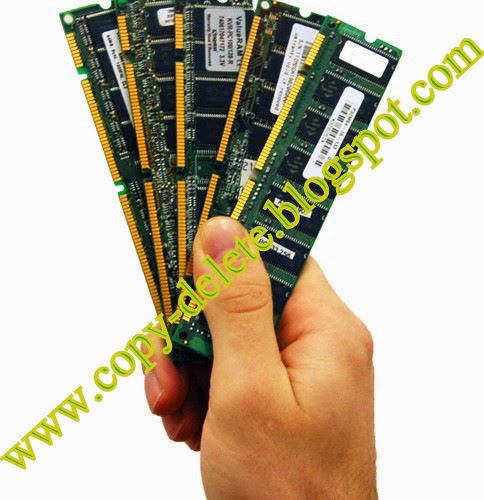 |
| No need to buy a set of ram | increase ram of computer pc laptop | boost computer performance and speed |
Speed up your ram :-
Have a look at :-
How To Convert 1 GB File Into 1 MB
Wednesday, January 3, 2018
How to use CrashPlan but not suffer from using so much RAM memory
How to use CrashPlan but not suffer from using so much RAM memory
I use CrashPlan to backup my data as mentioned in a previous article � it�s free for local backups and for sharing HDD space using multiple friends� HDD space. I have noticed that the RAM usage goes up in proportion to the number of files that you have selected to backup � even during the time when the backups are disabled. 
The settings to limit the time that CrashPlan does the backups can be found in the CrashPlan Desktop interface under �Settings->Backup->Between Specified Times�. I have selected From 18:00 to 08:00 and ticked each day � so that backups only happen at night daily. 
I noticed that even when the backup was disabled, the CrashPlanService was using a lot of RAM memory (over 500MB) � and I found my PC swapping to disc all the time � which was slowing my PC down � a bit of a waste! So, I found a way to create a schedule that stopped the CrashPlanService just after 08h00 and start it again just before 18h00.
Creating a scheduled task to kill the service:
Open the �Control Panel->Administrative Tools-> Task Scheduler�
Click into �Microsoft->Windows�: 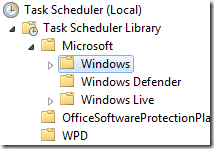


and under �Add arguments� enter: /IM CrashPlanService.exe /F 
Creating a scheduled task to start the service:
Click on �Create Task�: 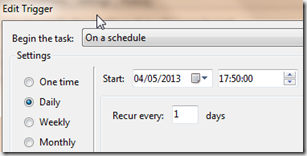
and under �Add arguments� enter: start CrashPlanService

Your tasks list should look like this:

You can test the tasks by right clicking the task and selecting �Run�:

With thanks to Scott Granneman for his blog that describes the steps to do this in Linux.
Monday, December 25, 2017
How to open hidden task manager to clear RAM and improve performance of your phone Nokia Asha
How to open hidden task manager to clear RAM and improve performance of your phone Nokia Asha
 |
| Source- The Mobile Indian |
Nokia Asha phones that run on the New Nokia Asha Platform comes pre-installed with a bunch of apps that uses much of its internal memory.There are ways to remove pre-installed apps in older Asha phones but no working method has been found yet for the phones running the new Asha OS. With the last major OTA update, Nokia has removed some of the useless games and has included many other apps. And these can�t be removed. Although this was a good move from their part but each users have their own tastes and preferences. The list of these default apps include Line, Wechat, Linkedin, Twitter, Nimbuz, OneDrive, NewsHunt and some utility apps like Pocket Word, Pocket Excel etc. Many users find these useless as for a normal person LinkedIn is not necessary. Many don�t use Whatsapp, Wechat, Line and Nimbuz at a time. Many don�t feel it good to view documents in a 3� inch screen and the Pocket apps(Word, Excel, PowerPoint) are not efficient enough to do their job. So all these factors make these apps useless and wastage of memory and makes the phones menu look crowded.
The messenger apps eat up a lot of RAM in the phone and by Lot of RAM, i meant the limited 64MB RAM. With the last update, the software got pushed to 14.0.4 in which the RAM management in the phone got improved. Now a simple task manager pops up with the option to close the apps that are currently running in background. Apps like Whatsapp and Xpress Browser always run in background once opened. This will remain opened till you switch off or restart the phone. So while using some apps like Wechat, Nimbuzz or browsing in UC browser, the heap memory decreases after some time and the task manager pops up. In this situation, you must close all the apps shown there to clear memory. This prevents the phone from getting overloaded. But Its quite annoying as we were in the middle of something and now we need to close the browser. The task manager cant be opened manually. It opens itself when a situation arises. So we are not able to check what all apps are opened in the background.

The new TASK MANAGER app given an end to this problem. The app helps to open the hidden task manager in the phone thus enabling us to close all background running apps whenever we want. In my opinion, this is a handy and a must-have app in your phone. I recommend you to save the file in the phone memory of your phone so that app will still be there even if you remove the memory card. Saving in the phones limited memory wont harm you in an way, because the app is just 16kb in size!
[ Please note that this is an app that runs only in Nokia devices running Asha Platform 14.0.4 or higher; Nokia 501, 500, 502, 503 and 230 ]
Download using UC Browser(recommended)
Source: Nokiaasha/S40 Experts

Alternate Link
Thursday, December 21, 2017
HOW TO USE SDCARD AS RAM TO OUR ANDROID MOBILES
HOW TO USE SDCARD AS RAM TO OUR ANDROID MOBILES
Hai Friends, am going to tell you
Its very simple and it works great.
we need
1.sdcard but class 4 or higher SD Card will give excellent speed to your Phone.(best use 4gp or higher sdcard)
2.Rooted Android Mobile or Tablet.
3.Card Reader.
4.Minitool Partition Wizard software.
I previously post about the updation of android 2.1 to 2.3, or higher.
I face a major problem as performance low,
so this post is solve that.
Go ahead for custom rom.
Note For Users: This method mostly worked in all Machine Devices; Internal Memory Trick will work on all devices but Ram Increasing method is dependent on your phone�s ROM. check whether Swapping is supported by your phones ROM or not.
(just Google it as your ROM name with �a2sd help� or �swap help� or a touch similar to this for more specific information about your Device�s ROM,. Dont do before knowing about your rom. )
so sony w8 or x8 stock rom does not support the swapping.
but we update it to custom rom, it will support.
my device is: sony w8.
am using minicm7 shakira rom which supports swapping.
K lets Starts,..
Note: Backup your important data from sdcard to your pc or some other device.
One Important Thing Make sure Your Mobile is rooted.
Download the Mini tool Partition Wizard and install it to your pc.
Insert your sdcard to your pc by using card reader, dont use usb cable.
Watch the below Video for get an idea about partition
After partition put your memory card to your mobile.
Now goto setting-->CyanogenMod-->performance-->A2SD(ext)setting-->available modes--> click,,->a2sd.
it ask root permission.
Then Reboot the Device.
Now we need Swapper 2 application
for swap the sdcard as RAM.
The Link for Swapper2 is: Swapper2
Download the application from Google play.,
and install it.
Then open the Swapper2 application
Dont Click ON Button Before Setting up.
Press the Menu Button and
Goto Setting-->
1.Tick Run swapper at startup.
2.Set /sdcard/swapfile.swp in swap place.
3.set the swap size whatever you want, i set as 256mb ram in Swap size.(you set according to your swap partition size)
4.set swappiness whatever you want from 10 to 100.
5.Tick Safe Unmount.
6.Tick Safe Remount.

Goto Advanced Preferences.
7.Tick Use Swap partition.
8.Tick Recreate swap file.
9.Tick Reformat swap.

Now Come back.
Click the ON Button it ask root Permission.
Thats it, Now your Mobile used this swap file as RAM for your mobile.
Let Now Check it whether it works or not.
Open the Terminal Emulator
Type su Then
Type free
It show the memory of the sdcard.
In that see the swap,
if it show as 0 0 0 like that.
It means your swap is not working
see the below picture you get an idea.
it show the swap working.

See the Last line of the above picture
Total used free
It shows the swap 297436 71804 225632
its working.
Instead of that 0 0 0 shows like
this means its not working.
Thanks for Reading...
by
Tuesday, December 19, 2017
How to use USB flash drive as ram in windows 8 7 and XP pendrive
How to use USB flash drive as ram in windows 8 7 and XP pendrive
- Right click on �My Computer� and go to �properties�.
- Now click on �Advance tab�.
- Click on the �settings� of performance.
- Now the performance options appear. Go to �Advance tab�.
- Click on �change� option of virtual memory.

- Select your pen drive.
- Click on �custom size� which is a radio button. It displays the initial and maximum size of the pen drive.
- Click on �set� button.
- Click �OK� to complete the setup.
- Plug in your Pen drive.
- Format it.
- Right click on the pen drive icon.
- Select �properties�.

- Select �Ready boost�.
- Click �use this device�.
- Now select the maximum space that RAM can give to the computer.
- Click �ok� and �apply�.
Extra tip:

BY- Seevendra Dwivedi
Monday, December 18, 2017
How to Increase RAM upto 2 GB on Nokia X Series
How to Increase RAM upto 2 GB on Nokia X Series

How to Increase RAM upto 2 GB on Nokia X Series?
Requirement:
(1)need rooted phone.
(2)class 10 SD card.
(3)roehsoft ram expander cracked
Click on to download below
1.Video download
2.Apk download
FAQ: click here
FOR more information about Nokia X device click here
For daily updates like fb page https://m.facebook.com/NokiaXServices
Sunday, December 17, 2017
How To Increase RAM In Android Or Use Your SD Card As RAM
How To Increase RAM In Android Or Use Your SD Card As RAM

Cracked Version Link Updated
Method 1 to increase ram of android smart phone:
This app creates no magic it simply increase up your android smartphone RAM by converting a part of SD card memory into RAM. Then your memory card will be used as virtual RAM.
How to use ROEHSOFT Ram expander (SWAP) to increase your RAM.
- Once you have checked that your device is compatible buy this app from google play store.
- After you have installed the app in your smart phone create a swap file.
- You can create swap file by clicking swap active and enable it.
- Final step it activate swap. You can do so by clicking on grey box.
- Done. You have successfully fully increased your RAM.
Thursday, December 14, 2017
How To Install Bluestacks On Machine With 1GB RAM Bluestack With 1 GB Machine
How To Install Bluestacks On Machine With 1GB RAM Bluestack With 1 GB Machine


Method 1: Steps To Install Bluestacks With 1 GB Ram
- i) Download Orca: http://goo.gl/GhoAwf
- ii) Download Bluestacks offline installer: http://bit.ly/1vE6su6
2) Install Orca > successful installation.

3) Then in the next window opened select �LaunchCondition� in left panel .Now select the row with condition as �Installed OR PhysicalMemory>= 1024� and delete it and click OK.


6) Goto > click on �Save�.

7) Now run edited setup. Now, it will not give an error.
we hope you enjoyed reading this tutorial to install bluestacks on 1gb ram. One more thing is this method also works to solve �error 25000�. Mostly this error is faced by windows 8 and windows8.1 user.
Method 2: InstallBluestacks with 1 GB RAM or without Graphic card
Download link of Bluestacks edited version: { Updated }
Download Bluestacks edited version (LINK1)
Tuesday, December 12, 2017
How to optimise RAM maximise performance on Android
How to optimise RAM maximise performance on Android
- have as much free RAM as possible (so that there�s room to crank in new applications without disturbing any of your core apps that are already running)
- fill RAM as much as possible with running apps (so that as many core apps as possible can be available for instant switching)
| Launcher | Average free RAM after booting had finished |
| Google Now (the �Google Experience�, etc.) | 265MB |
| Trebuchet (the default own-brand/stock launcher that comes with Cyanogen Mod) | 308MB |
| Novalauncher | 284MB |
| Apex Launcher | 293MB |