Thursday, January 4, 2018
How to save battery in Micromax unite 2
How to save battery in Micromax unite 2
Battery saving Tips for Noobs


Tuesday, December 26, 2017
Increase your battery backup without using any battery saver apps in Android
Increase your battery backup without using any battery saver apps in Android

Google�s Android is the largest installed mobile OS in the world. Its devices also sell more than Windows, iOS and Mac OS combined. Its a low-cost and customizable OS which makes it preferable among manufacturers. It is an Open Source platform based on Kernel Linux and is used by many major mobile/tablet manufacturers including Samsung, HTC, LG, Sony and Microsoft Mobile(Nokia) recently. Android phones range from budget phones like Samsung Galaxy Star, Micromax Bolt Series, Motorola E, Nokia X etc to high end smart phones like Galaxy S5, Xperia Z2, HTC M8 and so on.
Android smartphones are equipped with high quality graphical display, 3G/4G connectivity, Wireless Fidelity, a good amount of RAM, Multitasking capability and many other features that requires a lot of battery backup, thus draining the battery soon. This is the main drawback of Android. There are hundreds of battery saver apps available in Google Play Store for reducing the battery usage in your phone. These apps can help you save your battery to a great extent, but still it depends on the usage of the phone.
Here are some important measures you must follow apart from using battery saver apps. These tips are provided by CheetahMobile, the developers of the popular Clean Master app.
TIPS FOR REDUCING THE BATTERY USAGE IN YOUR ANDROID -
1. Disable automatic time zones/time and the clock manually otherwise your device will l constantly be requesting location/time data and its almost entirely unnecessary.
2. Reduce the push frequency of email/weather/social media.
3. Disable Wi-Fi/Data while playing offline games which present ads, for many apps they will be unable to push you ads during gameplay without a connection.
4. Try to charge the battery before it falls below 20 per cent, its not good to run them completely dry.
5. Use the official chargers for your devices, an aftermarket charger may not charge at the correct voltage or have other deficiencies.
6. Charging via a power outlet is often times much more effective than charging via USB.
7. When you are done with an app try to actually shut it down instead of pushing it to run in the background.
8. Try to avoid playing graphically intense games while charging.
9. Switch off or use flight mode in places where the network is weak.
Sunday, December 17, 2017
Increase battery life on mx a89ninja root
Increase battery life on mx a89ninja root
Yes guys you read it right now our micromax a89ninjas battery drain problem can be completely fixed using die hard battery calibrater unfortunately its only for root users yes myself i have tested it and has a good results now even after a 3 hours of hardcore gaming it just drained 2points and after that it stay awake for the whole day but before using it my mobile wont even stand alone for 1hour ok lets calibrate our batteries and throw off our chargers for the whole day.
Things needed
1. Rooted micromax a89
2.script manager download
3.die hard calibration script.pdf download
STEPS
1.install script manager and allow root acess for it
2.download die hard script and put it any where in sd card(script manager cab handle pdf files so dont rename it)
3.now open script manager and go to the path where you put the script and open it
4.you will see the script running and checking youre root rights follow the on screen commands and select manual calibration(sorry forget to say you must charge your mobile at lest 50% i recommend you to charge 100%)
5.you will see the script removing current battery status when every thing is complet close script manager and drain your battery completely to 0% without gap
6.after draining to 0% plugging your phone to charger and charge it to 100% without gap and without switching it on
7.when it charges to 100% switch it on but dont unplug from charger and open script manager and calibrate it using manual mode again when it complete throw off your charger for the whole day and enjoy.
And do you guys Know now my mobile is recharging faster when i plugged in
THANKS

Saturday, December 16, 2017
How to make Battery Level indicator Circuit 12V battery
How to make Battery Level indicator Circuit 12V battery

Hey D.I.Y makers welcome.
In this post, I am Sharing Simple Battery Level indicator Circuit using the LM3914 IC

Here is the Heart Of the Circuit - LM3914 IC
And For Easy The Pinout Has Market Where the led is to be connected, And all other components.

Now Here is the circuit diagram.
You will Need -:
1 - 56Kohm Resistor
1 - 18Kohm Resistor
1 - 3.9Kohm Resistor
1 - 10K Potentiometer

Wednesday, December 13, 2017
How To Maximize Or Boost Android Battery Life
How To Maximize Or Boost Android Battery Life

How To Increase Your Lumia’s Battery Life
How To Increase Your Lumia’s Battery Life
Email sync time can be changed from �Email�>Settings�>Sync Settings�>Download New Content�
Disable Xbox live IF you don�t play any Xbox live games online- If you don�t play any games on the Xbox live server (such as Wordament or Alphajax etc.) then it�s a smart idea to turn off the connection to Xbox live; stopping it from constantly searching for friend and game requests.
To disable Xbox live go to the games tile �Settings�>Connect With Xbox live�>set to off�
Set screen brightness to �low� or �Auto-brightness� rather than high- Screen brightness is a huge battery eater, especially on the Lumia 920 which can go up to 600 nits, and goes to a high contrast mode in direct sunlight that helps direct visibility.
To change the brightness go to �Settings�>Brightness�>and change the settings�
Change your maximum data speed to match what your carrier provides- Depending on your carrier/location (not available in the US/At&t apparently); but if you live in an area with poor 4G coverage or spotty reception it�s better to shut off your 4G antenna and save some precious juices.
To shut off 4G/3G go to �Settings�>Cellular/Mobile Network�>Highest Connection Speed�
Disable NFC/Tap to Send if you don�t use it- NFC is a great feature, but unfortunately it�s not exactly everywhere right now (especially outside the US) so if you don�t use NFC much keep it off to so save some battery.
Disable NFC from �Settings�>Tap + Send�
Disable any non-vital applications from running in background- Some apps will run in the background and drain your battery as well as your data plan, to avoid that prevent them from running when closed.
To block background applications go to �Settings�> Swipe to the �applications pane� on the right��>Disable any non-vital apps (such as Nokia Drive, Baconit, IMDB etc.)�
Friday, December 1, 2017
How to Improve My Android Battery Life
How to Improve My Android Battery Life

Thursday, November 30, 2017
How to Reset Samsung Android Mobile Phone Battery for Better Performance
How to Reset Samsung Android Mobile Phone Battery for Better Performance
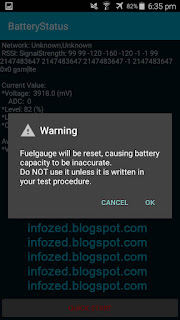
If you have Android Mobile Phone then you often Hardreset your mobile phone by going their Recovery mode. This hard reset erase all mobile data on Mobile Internal Storage Memory. Many people did not know that the battery of Android smartphones also can be reset to his own original factory settings. By doing this task, your mobile battery will be restored to factory settings and give you best performance as it was in starting time.
How to Reset Samsung Android Mobile Phone Battery for Better Performance
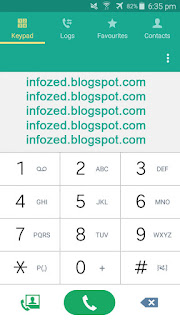
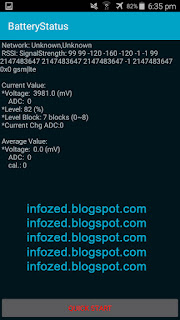
Simply Dial the short code *#0228# and your battery information will be shown on your mobile screen.