Showing posts with label cable. Show all posts
Showing posts with label cable. Show all posts
Thursday, January 4, 2018
How to Transfer Data to Any Android Mobile Without Using Data Cable
How to Transfer Data to Any Android Mobile Without Using Data Cable
How to Transfer Data to Any Android Mobile Without Using Data Cable?
So here we provide one unique and useful solution to transfer data from pc to android mobile without using any data cable.
How to Transfer Data to Any Android Mobile without Data Cable?
To overcome this problem there is one excellent application which allows you to send and receive files from pc to android mobile. That is Software Data Cable (Pro), by using this application not only transfer from pc to android mobile but also transfer from other devices.1. To work with this application first you need to download Software Data Cable (Pro) application from Google play Store and install it on your android mobile.
Download Software Data Cable (Pro)
2. After installing this application just connect to same Wi-Fi network which is already connected to your pc or mac.
3. Now open application and click on �start service� button and it will display an ip address. Note that ip address and paste it on windows explorer.
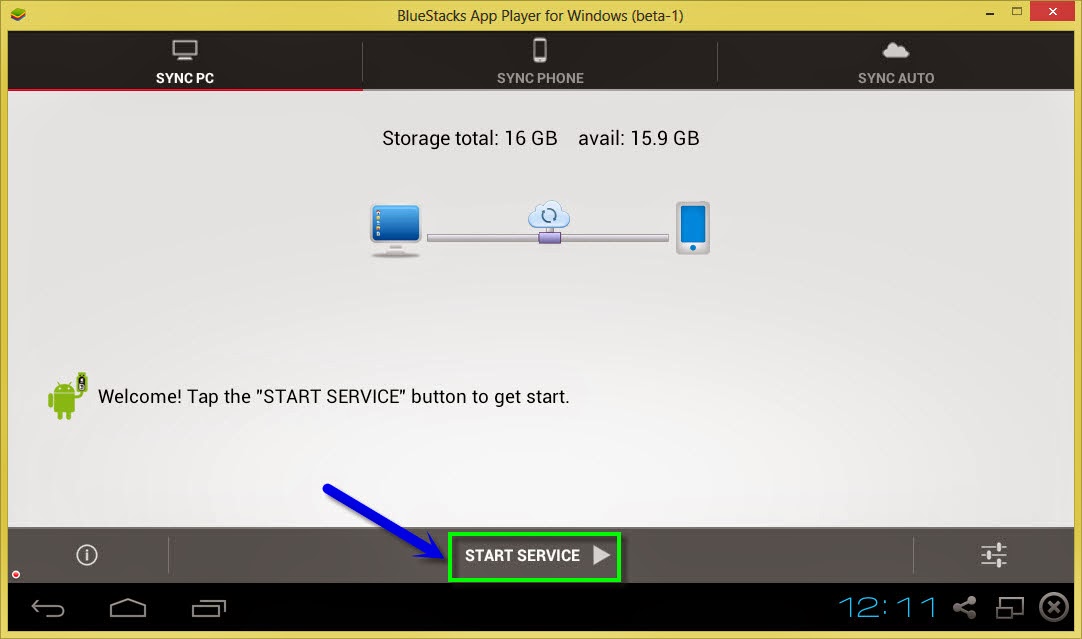
4. Once you enter this ip address then press enter to see all your mobile folders in your pc.
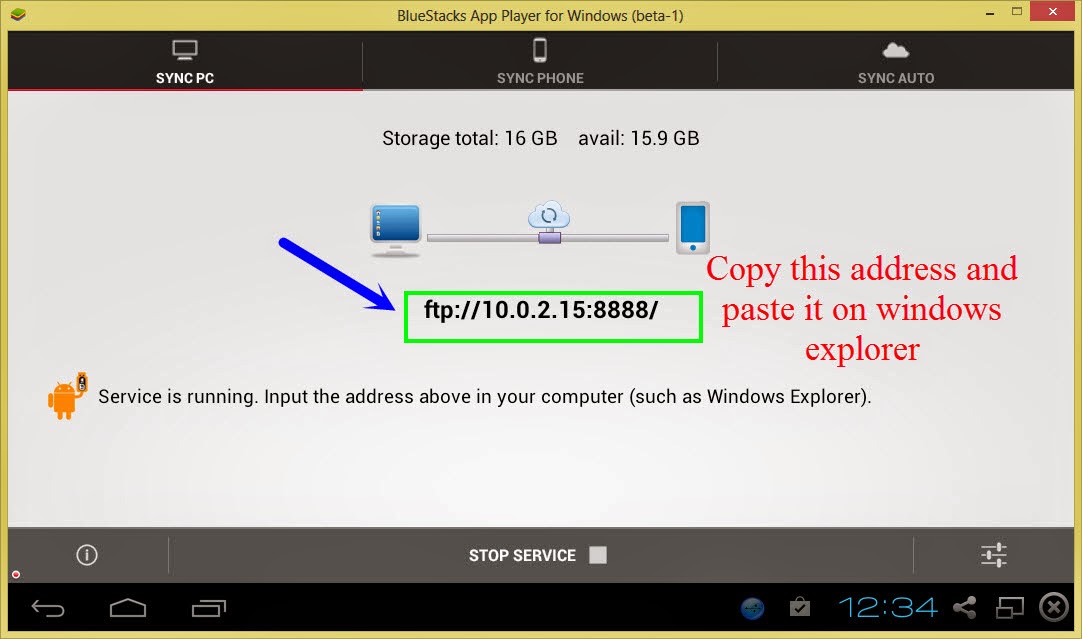
6. That�s it, in this way we can transfer any file/folder from pc to android mobile but make sure you have Wi-Fi connection.
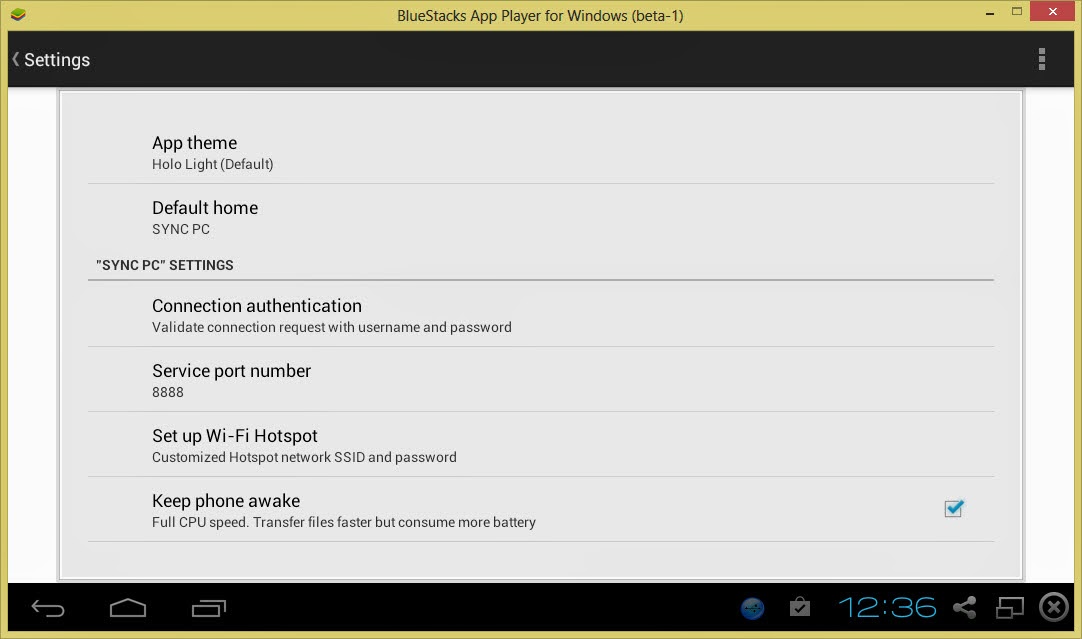
7. You can also change settings of this application as per your requirements.
Features of Software Data Cable (Pro):
- There is no need to download and install drivers to work with this application.
- Send photos, videos, apps, music and other files to other mobiles, tablets etc.
- You can also auto sync all important data to computer or any cloud storage on daily, weekly basis.
- Transferring speed is too fast with 54Mb/s
- Sync all your important data to cloud storage networks like Microsoft one drive and baidu etc. You can also sync folders and files to laptop, pc or any other file server.
- This is also compatible with windows explorer and other FTP clients like Filezilla.

Sunday, December 31, 2017
How To Nokia 225 Usb Cable Pinout Rx Tx Solution 10000 Ok Flash
How To Nokia 225 Usb Cable Pinout Rx Tx Solution 10000 Ok Flash

Nokia Infinity Update Flash Pinout Solution 10000%Working
Saturday, December 30, 2017
How to Share the Internet Through an Ethernet Crossover Cable
How to Share the Internet Through an Ethernet Crossover Cable

You might seen in Office,Cyber Cafe,Computer Centers,a set of Computers are connected in LAN and sharing Internet via a single Host,may be they have implemented a Complex Network Topology but you can also create a simple and easy Network at your home and youll be able to share files,Internet everything Via a single Lan Cable,Lets See :
How to Share Internet Via a single Lan Cable between two Computers?
Ill describe the whole procedure step by step with Screenshots :
- Go to Start Manu > Click on Control Panel

- Click on Network and Sharing Center

- Change Adapter Setting

- Right click on your Internet Connection Adapter and Select Properties

- Click on Sharing Tab and Tick the First Option
- Second Option is not necessary but If Any problem Occurs then Tick on the Second Option.
- Now Click on Ok button.

- Now right Click on your LAN adapter and select properties

- Select Internet protocol version 4(TCP/IPv4) and click on Properties

- Now tick the Use the following IP address Radio Button and Fill the Details

- Right Click on the LAN Adapter and Select Properties
- Select Internet protocol version 4(TCP/IPv4) and click on Properties
- Now Fillup the Details as below Screenshot :

- Click ok on all open Windows .

If this Tutorial was helpful for you then please leave your comments...
Wednesday, December 20, 2017
How to make SPAMOB5762 cable for micromax a62 a67 flashing
How to make SPAMOB5762 cable for micromax a62 a67 flashing
SPAMOB5762 CABLE FROM NOKIA CABLE
FIRST TAKE A NOKIA CA-101 NORMAL DATA CABLE
OPEN THE CONNECTOR FROM MICRO USB SIDE
NOW SHORT THE PIN NUMBER 4 AND PIN NUMBER 5 AND SOLDER THE BLCK WIRE
NOW YOUR CABLE SPAMOB5762 CABLE IS READY TO FLASH MICROMAX A62

YOUR CABLE SPAMOB5762 IS READY TO FLASH MICROMAX A62
Thursday, December 7, 2017
How to Manage and Transfer Photos Files From Your Android Phone to PC Without Connecting USB Cable
How to Manage and Transfer Photos Files From Your Android Phone to PC Without Connecting USB Cable
How to Manage and Transfer Photos/Files From Your Android Phone to PC Without Connecting USB Cable
You want to transfer some photos from your Android phone to your computer to upload it online, or may be you need to update the music library on the Android with the latest tracks you have on your desktop. The snag you encounter here is that you are not able to recall where you kept your USB data cable last time after using it. Transferring files via Bluetooth will take ages, and thus you end up frustrated, consequently postponing the process.
Do you find yourself in the aforementioned situation often enough? If your answer is yes, we have just the right thing (actually an Android app) to bring a smile to your face.
AirDroid is a nifty Android app that lets you manage and control your Android device from a web browser �over-the-air�, meaning without connecting USB cable.
Cool Tip: Indeed, you need a Wi-Fi connection to connect your computer with your phone, but even if you don�t have a router at your home, you could create a Virtual Access Point on your Windows 7 laptop and let the phone share the connection wirelessly.
To get started, download and install AirDroid from the Market. Once you run the application you will be given an IP address and a self-generated password. Both of these will help you connect to your Android using your computer

Note: Please make sure, both your phone and your computer are connected to the same Wi-Fi network.
Now open your browser on the desktop and enter the IP address along with the port number you see on the AirDroid main screen in the URL field, and press enter. Your browser will communicate with AirDroid application running on your mobile and open the password authentication screen.

Enter the password AirDroid has generated for you and voila! you get a wonderful dashboard from where you can view and control almost any gamut of your Android smartphone.
By default, on the right-hand side you can see the details of the phone you have connected, on top there�s a search app tool and on the left-hand side are the icons to control contacts, messages, files, etc on your Android.

All the elements on the main screen can be dragged and dropped, and thus you can customize it as per your needs. The application gives you the power to manage files, wield messages and contacts, view and transfer photos, listen and manage music, install and uninstall applications. You can even change your ringtone quickly and easily!!
All the modules are very impressive, and at the same time, they are easy to work on. The file manager, for example, resembles the Windows explorer quite a bit. The application manager makes installing, uninstalling and exporting (backup) of the applications a cakewalk. Downloading and playing media file was never so easy.


You can control your SMS and Contacts, and that�s not all, if you are feeling lazy to write SMS using your Android keyboard, you can compose and send a text using AirDroidrunning on your browser.

Impressive huh? So go on, install and use it today, it�s free!!
Thursday, November 30, 2017
How To Make Modified Android Boot Nokia USB Flashing Cable
How To Make Modified Android Boot Nokia USB Flashing Cable
How To Make Modified Android Boot + Nokia USB Flashing Cable
Before To Write Someting I Want To Tell You One Thing. What Economics Says? Okay I Want To Tell You Here, Human Can Not Made Any Thing Itself. They Just Can Modified From One Thing To Another Like: Carpenter Did Not Make Furniture (Chair, Table) But In Fact Carpenter Just Changed The Form Of Wood To Chair. So, He Did Not Make That. Just Change The Form One To Another. So, This Is Super Modified Cable Never Make Before.

These Days, Many Android Devices Are Appearing In The Market. So, We Think This Is Also Challenging Job To The Technician To Get Success In Android Devices. We Are In Chinese Section So We Think For Chinese Devices. May Be This Cable Will Also Work For Original.
Why We Need 4 In 1 Cable?
Because In Market We See V3, 8600, Iphone4 And Iphone5 Types Of Android Devices Much.
Why Switch In The 4 In 1 Cable?
Sometimes, We DonT Need Vcc Especially To Repair Imei Of Android Device So, When No Need, Then, You Can Switch Off The Vcc As Shown In The Picture.
Why 5310 Type Power Cable And Others Type Here:
Sometimes Vcc Or Bsi Point Has Broken From The Charging Socket Or Earphone Socket Or Usb Socket, So We Have Added This Link To The Power Cable. And, It Is Very Hard To Fix The Other Type Of Power Cable So We Have Added 5310 Type Here.
Now, You Can Work With This Cable With Nokia And Such Type Phone To Flash From Usb.
With This Cable:
1. You Can Bring The Nokia Local Mode So That You Can Flash The Nokia Device From Usb Method Because This Cable Is Inbuilt Resistance To Bring The Device To The Local Mode.
2. You Can Also Flash The Android Devices Because Empty-Places Occupied And Joined To Gnd So That There Is No Need To Install Battery At The Flashing Time.
3. We Have Switch Of Vcc So That When The Device DoesnT Need Vcc, Then, You Can Off Vcc From The Switch.
4. We Think Future Technology, So We Also Not Only Think 8600, V3 Types But Also We Think Iphone 4 And Iphone 5 Cables Types On It So That Future Model Can Easily Do With This Cable.
5. You Can Repair Android Imei Easily.
6. If Your Devics Has Broken Point In Of Vcc From The Socket (Charging, Earphone Or Usb Socket), You Can Also Repair Your Device Because This Cable Has Given Extra Vcc From The Wire, Not Only Vcc But Also Bsi And Gnd. I Think, Users Can Understand This.
7. As Users Know That 8600 Types Battery Socket Is Different Type And It It Difficulty To Give Powre From Cable Because At The Time Of Operation Cable Can Unplug And Device Can Be Dead So We Have Added Battery Cable For This Type Also.
8. No, Need Buy More Cables And So You Can Save Money Just Buying It.
9. No Need To But And Cut Cables For Different Types Of Mobile That Saving Your Time And Money Also.
Subscribe to:
Posts (Atom)