Showing posts with label rom. Show all posts
Showing posts with label rom. Show all posts
Thursday, January 4, 2018
HTC One M9 ROM List
HTC One M9 ROM List
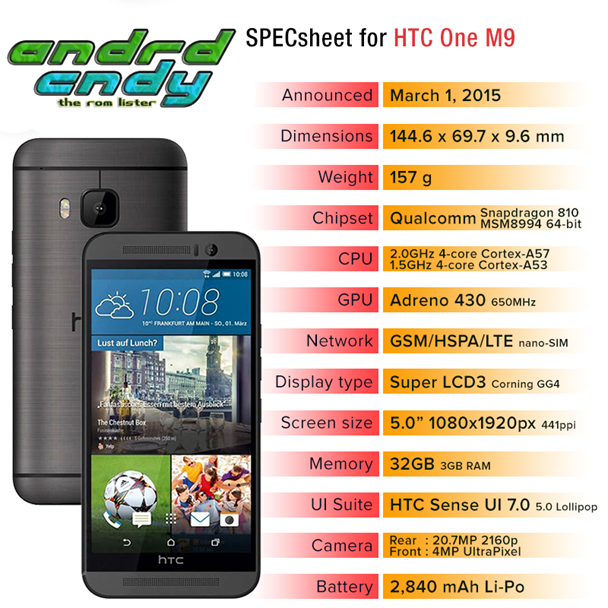
*Please proceed at your own risk*
| ROM | Version | Android/firmware | |
|---|---|---|---|
| DarkSense | 1.0.1 | 5.0.2 / 1.32.401.15 | |
| Eragon | 6.1 | 5.0.2 / 1.40.401.8 | |
MaximusHD | 4.0.1 | 5.0.2 / 1.40.401.8 | |
| Pyrana H | 0.4 | 5.0.2 / 1.40.401.8 | |
| SD | 1.0 | 5.0.2 / 1.32.401.17 | |
| Skydragon Dev Ed | 2.0.1 | 5.0.2 / 1.32.617.30 | |
| Skydragon Redbulled | 2.0 | 5.0.2 / 1.32.401.17 | |
| Stock w Goodies | 1.22 | 5.0.2 / 1.32.617.30 |

How to Install Android 4 4 KitKat Based ROM on Galaxy S3 GT I9300 GT I9305 AT T Sprint T Mobile Verizon
How to Install Android 4 4 KitKat Based ROM on Galaxy S3 GT I9300 GT I9305 AT T Sprint T Mobile Verizon

Owning a Google Nexus device is a kind of guarantee that you would be one of the first to receive the latest version of Android, but if you got a phone/tablet from manufacturers like Samsung, LG, HTC, Sony, etc., you might have no choice but to wait perpetually. Even if you get a new (?) update, it�s got to be an old thing by the time it reaches you. Samsung�s treatment with its popular phones like the Galaxy S3 and Note 2 is a very relevant example of how manufacturers shirk from sending software updates to their users.
Yesterday we published an article on installing Android 4.4 KitKat based custom ROMs on the Galaxy Note 2 and many of its variants. Extending our KitKat treat, we have now come with a collection of Android 4.4 custom ROMs for the Samsung Galaxy S3. If you own any of the following variants of the device, you can update your phone with the newest sensation of Android:
- Samsung Galaxy S3 GT-I9300
- Samsung Galaxy S3 LTE GT-I9305
- AT&T Galaxy S3 SGH-I337 (the ROMs for this model can also be installed on the Canadian variants e.g, Rogers, Bell, Telus, etc.)
- Sprint Galaxy S3 SPH-L710
- T-Mobile Galaxy S3 SGH-T999
- Verizon Galaxy S3 SCH-I535
Warning:
The procedure described below is not meant for perfect noobs as it is considered risky. Follow all instructions carefully if you do not wish to caught into a compromising situation. We would always be at our end to help you in case of a mishap but we take no responsibility. Proceed only if you agree to these terms.Prerequisites:
- A rooted Samsung Galaxy S3. If you have not rooted your phone yet, please take some time and root it using our easy rooting tutorial.
- The KitKat ROMs we are going to talk about are custom ROMs and therefore they require the presence of a custom recovery like ClockworkMod or TWRP on your device. Not only this, you must have the latest version of the recovery you use. You can download ROM Manager (CWM) or Goo Manager (TWRP) to install the latest version.


ROM Manager
Developer: ClockworkMod
Price: Free


GooManager
Developer: Snipanet Apps
Price: Free
Note:
Since Goo Manager is working properly these days, we recommend that you install CWM version 6.0.4.3 on your device. If you know how to install recovery image file using ADB command, download the latest CWM recovery .img file from here and install it. 6.0.4.3About the ROMs:
Please note that most of the ROMs that we have mentioned below are based on CM 11 and therefore have all the bugs of their parent. Being in early stage of development, it is obvious that you might encounter a few bugs in performance. Please install the appropriate ROM on your phone, test them and if you find them stable enough for you,use them. We hope that with new updates, all these ROMs will become more mature and stable.
Downloads:
Download the Android 4.4 ROM:
Now here are the CyanogenMod 11 based KitKat ROMs for Samsung Galaxy S3. In case you find more that one ROM listed for your S3 model, download any of the two.- Samsung Galaxy S3:
- CM 11 Unofficial ROM: cm-11-2013-UNOFFICIAL-i9300-V5.zip
- Samsung Galaxy S3 LTE:
- CM 11 Unofficial ROM: cm-11-2013-UNOFFICIAL-i9305.zip
- AT&T & Canadian Galaxy S3 (SGH-1747 and 1747M):
- CM 11 Unofficial ROM: cm-11-2013-UNOFFICIAL-d2att.zip
- Quantum ROM: Quantum-v3-Beta.zip
- BeansTalk ROM: BeanStalk-4.4001-20131120-d2att.zip
- Sprint Galaxy S3:
- CM 11 Unofficial ROM: cm-11-2013-UNOFFICIAL-d2spr.zip
- T-Mobile and Canadian Galaxy S3 (SGH-T999 and T999V):
- CM 11 Unofficial ROM: cm-11-2013-UNOFFICIAL-d2tmo.zip
- Verizon Galaxy S3:
- CM 11 Unofficial ROM: cm-11-2013-UNOFFICIAL-d2vzw.zip
Download Google Apps:
Google apps are not included in the ROM package. Therefore, you need to download and install them separately. Always choose the latest version of Gapps.pa_gapps-full-4.4-20131118-signed.zip
Mediafire Mirror
Download Latest SuperUser:
UPDATE-SuperSU-v1.69.zipHow to Install:
- Important: Do not forget to backup your phone�s EFS/IMEI before. Read this article for detailed tutorial.
- Charge your phone.
- Copy the downloaded Android 4.4 ROM file and the latest Gapps package from above and copy them to your phone.
- Also copy the SuperSU zip file to the device.
- Boot your Galaxy in recovery mode. Here is how to do it: hold down the Volume Up+Home+Power buttons together for 4-6 seconds till the screen turns up and you see the recovery screen. Alternatively,you can enter recovery mode using these apps.
- If you are using CWM, use the volume keys to scroll up/down and the power button to select files and options. TWRP users can simply touch the corresponding buttons to get a job done.
- Important: Before doing anything, do not forget to backup your current ROM using �backup and restore�option (in CWM) or �Backup� option (in TWRP) and check all items to backup.
- CWM Users: Go back to main menu in recovery and select �wipe data / factory reset> yes�. Then go to�mounts and storage� and wipe data and system.
- TWRP Users: Just tap on �Wipe� button and select Data, System and Cache.
- Now go back again and choose �install zip from sdcard> choose zip from sd card� option, select the ROM file in zip and choose �yes� when asked. If you have TWRP, use �Install� button, select the ROM and swipe the slider to confirm installation.
- When the ROM is installed, install the Gapps zip package just like you flashed the ROM in Step 11.
- Then install the �UPDATE-SuperSU-v1.69.zip� file the same way.
- Finally, select the reboot system option.
How to Update Samsung Galaxy Devices to Nougat 7 0 N for sock rom go to rompure com
How to Update Samsung Galaxy Devices to Nougat 7 0 N for sock rom go to rompure com
How to Upgrade Samsung Galaxy Smartphones to Android N 7.0 Nougat .
Do you want to update your Samsung galaxy Device with android 7.0 Nougat ? if yes then you are at right place . Today we are here with the guide on How to Get Latest android nougat 7.0 on Your samsung smartphones .
Android N 7.0 Nougat is the latest android operating system from google . The New os comes with many new advanced features , We will discuss about the new features later in the post . So in this guide we will tell you how to update Samsung Galaxy Devices to Latest android n 7.0 nougat . Recently a list of devices that will get android Nougat 7.0 update was released and only Flagship and new devices were in the list . So in this guide we will cover those samsung devices that will not get official android n 7.0 nougat update .
Update Samsung Galaxy Mobile in Android N 7.0 .
So before upgrading samsung devices to nougat let us discuss features of the newly launched android N 7.0 Nougat and after that we will start the guide .
The new android N 7.0 Nougat comes with a new design . Not only design but many new features have also been added in the Android 7.0 aka android Nougat . Better multitasking , more battery life and more security are one of the major upgrades that are made in the Android N . So starting with the guide on How to update Samsung Galaxy Devices to Android N 7.0 Nougat .
How to Update Android Jellybean to Android n 7.0 Nougat .
So first of all Starting with the official way to Upgrade Samsung Galaxy Devices with android N 7.0 Nougat .
How to Officially upgrade Samsung Galaxy Devices to Android N 7.0 Nougat .
- So first of all turn off your samsung galaxy Device .
- Now pull out the battery for Around 2 minutes .
- Now Insert the battery again and Turn on the smartphone .
- Now after the device gets turned on Head over towards the settings of your samsung device .
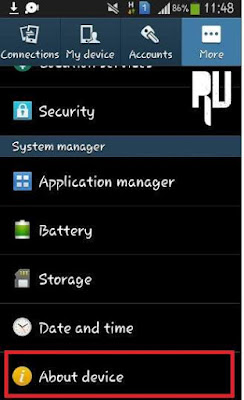
- Now open About device .
- After you open About Device you will see a option .
- To Check for system Updates .
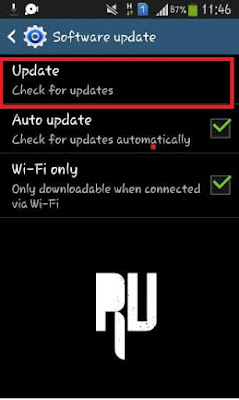
- Now tap on Check for updates .
- Now the device will ask you to connect to wifi to download the Update .
- Just connect to wifi or Connect to 3G/4G to download the Nougat update for Samsung Galaxy Devices .
- Now after downloading the Update .
- You will be asked to reboot the device
- Just Tap on Yes " Reboot and Install " .
- As soon as you choose the above option , Your device will reboot and the installation will start .
How to Update android Kitkat to android N 7.0 Nougat .
Thats all !!! You have successfully Updated your samsung galaxy Device to android n 7.0 Nougat .
Method 2 :-
How to Update Samsung Galaxy in Nougat 7.0 .
So in this Method will update the Looks of samsung galaxy device to look like android N 7.0 Nougat . In this method we will use the android Nougat ringtones for samsung , Android Nougat wallpapers for samsung .
So starting with the
Android N 7.0 Nougat wallpapers for samsung smartphones .




Here is How to Set Nougat wallpapers on Samsung Device :-
- First of all Go to the settings of Your Samsung Device .
- Now open Display settings .
- In display settings you will find a option to Change the wallpaper .
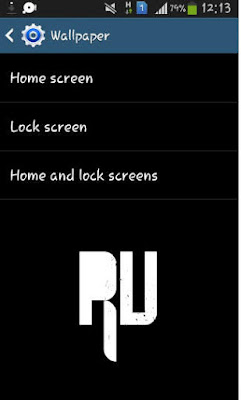
- If you choose Home screen then the wallpaper will be set on Home screen only . If selected Lock screen than it will be applied only on the lock screen and if you want to set the wallpaper on both the Homescreen and Lock screen . The select Home and Lock screen .
- After Applying the wallpaper set it as default .
.
How to update Android Lollipop to Android N 7.0 Nougat .
Android N 7.0 Nougat Ringtones for Samsung galaxy Smartphones .
- First of all Download android Nougat ringtones for Samsung Galaxy .
- Now after downloading go to the Settings .
- In settings choose Sound and profile settings .
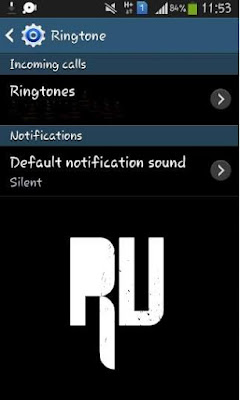
- Now in incoming calls settings choose the ringtone you want to make default .
- After That you can also set the Default notifications sound of your choice .
Android N 7.0 Nougat Launcher for samsung Galaxy Devices :-
The Last and the most important step is to install a Android N 7.0 nougat themed launcher on your samsung device . So here is How to set .
- So first of all Download the android N launcher from Google Play store .
- Now let it install .
- After Installing Just press the Middle ( Home ) Button of your samsung Galaxy Device .
- Now you will see 3 Options .
- Tap On " Android N " Launcher option .
- And then tap on Always .
- By doing this you will set the android N launcher as default launcher .
Cm Cyanogenmod 14 Custom rom update for Samsung Galaxy Devices .
Cyanogenmod is one of the most popular custom roms in the world . The Cm custom roms are based on Stock android versions and luckily samsung users are the amongst the top users who get support from Cyanogenmod developers so .
The cyanogenmod 14 for samsung galaxy devices is yet not released . However most of the samsung galaxy devices will be supported in the Cm14 based on android Nougat 7.0 . So after the official release of Cm14 for samsung Galaxy You will be able to update the Device to android Nougat 7.0 by flashing the custom rom .
So this was our guide on How to update Samsung Galaxy Devices to android n 7.0 nougat officially .
Wednesday, January 3, 2018
How to Update Oneplus 2 to Android 7 0 Nougat CM14 ROM for sock rom go to rompure com
How to Update Oneplus 2 to Android 7 0 Nougat CM14 ROM for sock rom go to rompure com
Android Nougat 7.0 Update for Oneplus 2 .
Do you want to Update Oneplus 2 to android N 7.0 nougat using CM14 rom for Oneplus 2 ? If yes then you are at right place . Today we are here with the Android 7.0 nougat update for oneplus 2 . To upgrade the smartphone we will use Cyanogenmod 14 rom .
Oneplus 2 is the successor of oneplus 1 , the device was launched in 2015 . Android Nougat 7.0 is the latest android version from google . Many devices started getting official nougat 7.0 update while the other devices which didnt got the update can use any nougat based custom rom to update their device . So today we are here with the Nougat 7.0 update for Oneplus two . The device runs on Oxygen 3.0.1 based on android 6.0 marshmallow and by using CM14 rom they will be able to taste the latest android version .
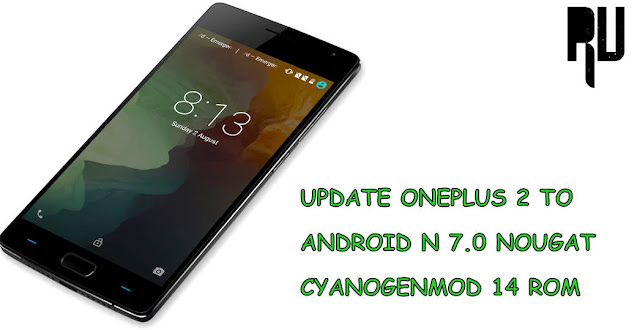
How to Update Oneplus to Android Nougat 7.0 .
As the device comes with a powerful processor so there are some chances that the device may get official nougat update but till then we can Install Cm14 rom in Oneplus 2 to update it . CM14 also known as cyanogenmod14 is the latest custom rom which is based on android 7.0 nougat . The custom rom comes with all features of android Nougat 7.0 :-
- Cyanogenmod 14
- Android N 7.0 Nougat
- Theme support
- System UI Tuner
- 7.0 Nougat ringtones
- 7.0 Nougat Wallpapers
- Next camera
- Ram manager
- Smooth
- Battery manager for long battery life
Related :-
- How to Update Oneplus 3 to Android 7.0 Nougat
- How to Update Oneplus 1 to Android Nougat .
As this is a custom rom so there are some points and pre requirements you have to follow before flashing the custom rom :-
- This custom rom is only for Oneplus 2 , dont flash it on any other device .
- Twrp or Cwm recovery is required to flash the rom ( TWRP is recommended )
- Minimum 60% of battery is required to flash the rom .
- A USB cable and Computer is required to download Nougat update for Oneplus 2 .
- It is recommended to make a backup of all your files .
Download and Install CM14 Nougat 7.0 in Oneplus 2 .
- First of all Download CM14 for Oneplus 2 .
- Download the Rom in Your computer .
- After Downloading Rename it to Update.zip .
- Now connect your Oneplus 2 to pc using the USB cable .
- Now copy the Nougat update.zip file to root of the Sd card or internal memory .
- Now disconnect smartphone from Pc .
- Now you have to boot your smartphone in recovery mode .
- To boot in recovery mode press Power + Volume Down button together until the smartphone enters in recovery mode .
- Now you will see many options .
- First of all Choose Wipe Data / Factory reset .
- Now choose Wipe cache
- Wipe Dalvik cache
- Wipe Cache Partition .
- Now tap on Backup and backup all files .
- Now tap on Install .
- Now choose the Oneplus 2 nougat update.zip file you downloaded earlier .
- Now The installing of CM14 on Oneplus 2 will start .
- Wait for sometime .
- Now you will get a Notification " CM14 installed successfully " .
- Now tap on Reboot .
- The first reboot will take sometime to complete .
- Thats all !! You have successfully update oneplus 2 to android nougat 7.0 .
So this was our guide on How to Update Oneplus 2 to android N 7.0 Nougat , I hope You liked CM14 for Oneplus 2 .
how to know who viewed my whatsapp profile stock rom go to rompure com
how to know who viewed my whatsapp profile stock rom go to rompure com
how to know who viewed my whatsapp profile
In this video i am going to show you how to know who viewed your whatsapp profile. So guys watch this video till the end then you properly understand how to know who viewed your whatsapp profile. Follow the steps properly.
STEP BY STEP TUTORIAL :
1. Download Whats Tracker app from given link or from play store.
2. Install it on your phone. Open it.
3. Enter your name (whichever you want). Enter your whatsapp number. Click on sign in.
4. Now you see 3 tabs.
* contacts
*visited
*visitor
5. Now visitor tab showing you how is viewed your whatsapp profile.
6. Done.
Thanks for watching.
how to know who viewed my whatsapp profile
ABOUT ME :
I Make Tech Videos Based Around SmartPhones especially Android Devices
Easy To Use Tutorials,Cool Android Tips & Tricks,Games & Apps Reviews.I Also show case interesting accessories & Gadgets
So what are you waiting for S-U-B-S-C-R-I-B-E and Join the best Android Tips and Hacks Channel On Youtube
Mahesh Technicals
DOWNLOAD Whats Tracker app :
LINK - 1:

LINK - 2:
In this video i am going to show you how to know who viewed your whatsapp profile. So guys watch this video till the end then you properly understand how to know who viewed your whatsapp profile. Follow the steps properly.
STEP BY STEP TUTORIAL :
1. Download Whats Tracker app from given link or from play store.
2. Install it on your phone. Open it.
3. Enter your name (whichever you want). Enter your whatsapp number. Click on sign in.
4. Now you see 3 tabs.
* contacts
*visited
*visitor
5. Now visitor tab showing you how is viewed your whatsapp profile.
6. Done.
Thanks for watching.
how to know who viewed my whatsapp profile
ABOUT ME :
I Make Tech Videos Based Around SmartPhones especially Android Devices
Easy To Use Tutorials,Cool Android Tips & Tricks,Games & Apps Reviews.I Also show case interesting accessories & Gadgets
So what are you waiting for S-U-B-S-C-R-I-B-E and Join the best Android Tips and Hacks Channel On Youtube
Mahesh Technicals
DOWNLOAD Whats Tracker app :
LINK - 1:
LINK - 2:
Tuesday, January 2, 2018
How to move apps on SD card Without Root hindi stock rom go to rompure com
How to move apps on SD card Without Root hindi stock rom go to rompure com
How to move apps on SD card Without Root. (hindi)
Did you know How to move apps on SD card Without Root??
Many people ask me how to move apps to sd card on android. So today I am going to show how to move apps to sd card. So this video is all about how to move apps to sd card on android marshmallow also. So guys watch this video till the end then you learn move apps to sd card in simple ways. So guys watch this video and know about move apps to sd card without root, or move apps to sd card marshmallow. So guys if you find this video helpful for you then please like and share this video and dont forget to subscribe our YouTube channel Mahesh Technicals.
Step by step tutorial :
1. Download Apk file of app you want to move to sd card put it on phone storage/save/download on phone
2. Download and install Apk Editor From Play Store Google Playstore
3. Open Apk Editor and choose Select an apk file
4. Now navigate the file you downloaded in step 1
5. Now choose common edit
6. Now main point tap on "Prefer External Storage" option and tap on Save button
7. After That install app and now you can see you can move app to the SD CARD WITHOUT ROOT .
NOTE :- THIS IS ONLY FOR APK APPLICATION FOR NON ROOT USERS IF YOU WANT TO MOVE DATA/OBB AND DEFAULT STORAGE ON SD CARD YOU HAVE TO ROOT UR DEVICE |
How to move non movable apps to SD card WITHOUT ROOT
DOWNLOAD APK EDITOR :
LINK - 1:
LINK - 2:

Did you know How to move apps on SD card Without Root??
Many people ask me how to move apps to sd card on android. So today I am going to show how to move apps to sd card. So this video is all about how to move apps to sd card on android marshmallow also. So guys watch this video till the end then you learn move apps to sd card in simple ways. So guys watch this video and know about move apps to sd card without root, or move apps to sd card marshmallow. So guys if you find this video helpful for you then please like and share this video and dont forget to subscribe our YouTube channel Mahesh Technicals.
Step by step tutorial :
1. Download Apk file of app you want to move to sd card put it on phone storage/save/download on phone
2. Download and install Apk Editor From Play Store Google Playstore
3. Open Apk Editor and choose Select an apk file
4. Now navigate the file you downloaded in step 1
5. Now choose common edit
6. Now main point tap on "Prefer External Storage" option and tap on Save button
7. After That install app and now you can see you can move app to the SD CARD WITHOUT ROOT .
NOTE :- THIS IS ONLY FOR APK APPLICATION FOR NON ROOT USERS IF YOU WANT TO MOVE DATA/OBB AND DEFAULT STORAGE ON SD CARD YOU HAVE TO ROOT UR DEVICE |
How to move non movable apps to SD card WITHOUT ROOT
DOWNLOAD APK EDITOR :
LINK - 1:
LINK - 2:
HTC mobile Stock ROM for all models
HTC mobile Stock ROM for all models
Stock ROM for all models of HTC :
If you are a HTC users and want to have a listings of all stock ROM for all models of HTC, then here you are. We will provide you with both the old and new updated listings of all models of HTC. You can see all HTC mobile firmware right below:
HTC Stock ROM Lists :
Listings for HTC - ROMs ( 316 )

Htc D816H Firmware w...
147 total views
 1
1 
MIUI 9 Beta for HTC ...
385 total views
1 
HTC 10
211 total views
 0
0 
HTC U11
176 total views
0 
htc one x 10 toolkit...
252 total views
1 
htc-d826 bord TB08-M...
303 total views
0 Desire 620G Full Bac...
718 total views
1 A5MG_DUG_4.4.2_HTC 8...
151 total views
0 
HTC Desire 626G
907 total views
1 
HTC One M7 Verizon 6...
938 total views
 2
2 
HTC 10 LineageOS
254 total views
1 
Lineage OS14 HTC ONE...
282 total views
1 A5_DWG_1.42.1401.1_d...
331 total views
0 a11_chl_1.47.652.1_D...
233 total views
0 A5MG_DUG_4.4.2_HTC 8...
221 total views
0 A3_TL_1.30.1403.1_De...
227 total views
0 8S_RIO_1.04.411.03
161 total views
0 ![HTC All Custom Recovery [TWRP/CWM]](https://www.needrom.com/wp-content/uploads/2017/05/67054-50x100.png "HTC All Custom Recovery [TWRP/CWM]")
HTC All Custom Recov...
910 total views
2 
HTC Bootloader Unloc...
650 total views
2 
HTC_One
756 total views
2 
HTC Desire 816
1563 total views
0 
HTC One M8
1398 total views
1 HTC One A9
403 total views
0
Subscribe to:
Posts (Atom)