How to Restore iCloud Backup to iPhone 8 without Wiping Data
How to Restore iCloud Backup to iPhone 8 without Wiping Data
To restore iCloud backup to iPhone 8 selectively, you need to get Primo iPhone Data Recovery to your computer. So why do we choose this tool? Let�s check some main features of it: 1. Supports restoring iCloud backup to iPhone 8 without wiping any existing data on your iPhone 8. You don�t need to worry about losing more data on iPhone 8. 2. Supports accessing and selecting iCloud backup files before restoring, you can choose the data you want instead of all iCloud backup content. 3. It�s able to restore iTunes backup to iPhone 8 without removing any data, and you can also select the iTunes backup files you want. 4. Besides, it�s capable of recovering lost or deleted iOS data on iPhone directly without any backup. Step 1. Download and install Primo iPhone Data Recovery to your computer and run it. Select Recover from iCloud and click Next to continue. How to Restore iCloud Backup to iPhone 8 Selectively � Step 1 Step 2. Log into iCloud with your Apple ID and password. Then click the blue arrow to start scan your iCloud backup data. How to Restore iCloud Backup to iPhone 8 Selectively � Step 2 Step 3. All data in your iCloud backup will show up after scanning. You can browse them in details and select the iCloud backup files you want to restore to iPhone 8. Click Recover button to start. How to Restore iCloud Backup to iPhone 8 Selectively
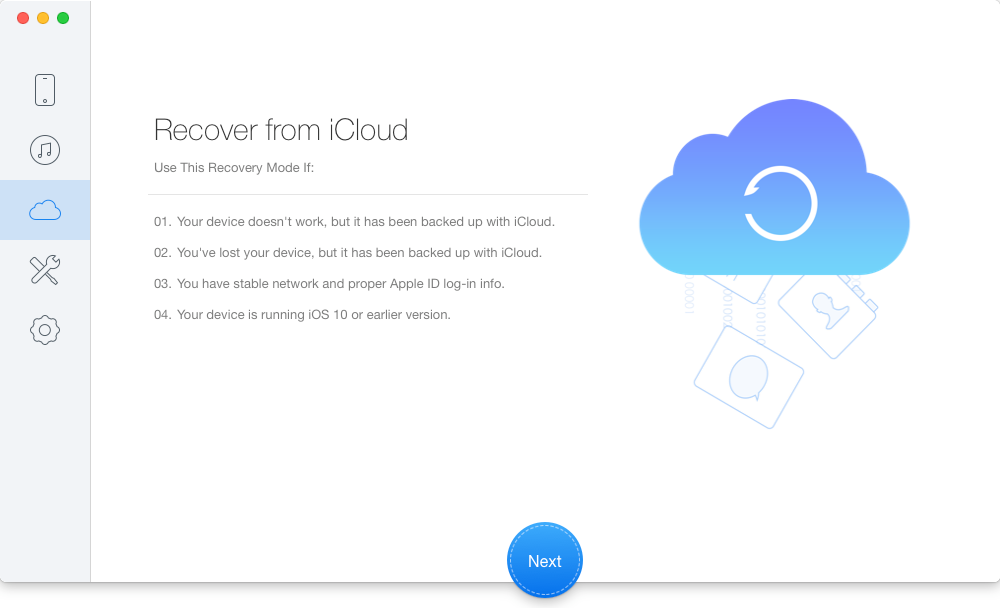 How to Restore iCloud Backup to iPhone 8 Selectively � Step 1
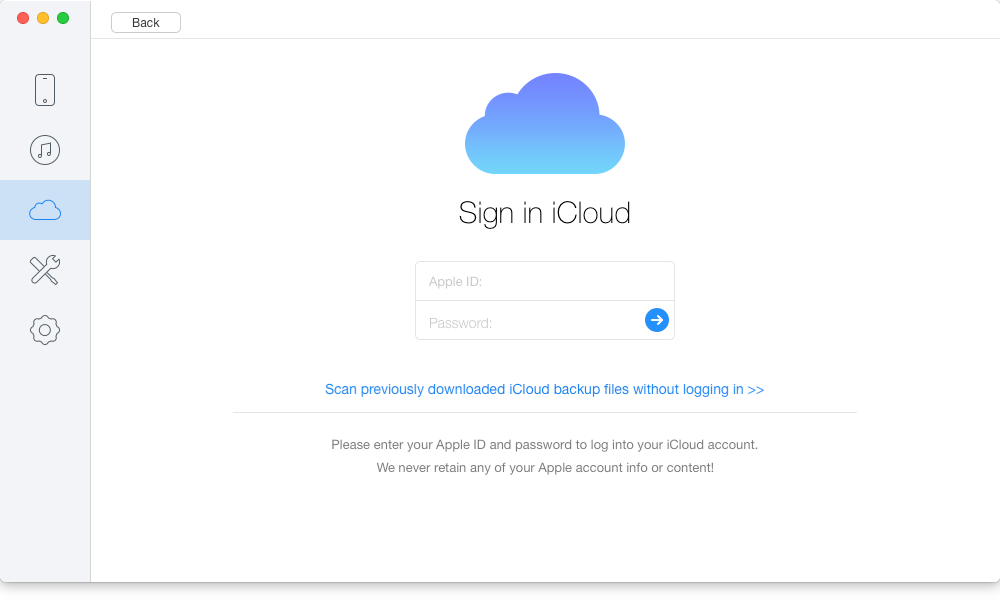 How to Restore iCloud Backup to iPhone 8 Selectively � Step 2
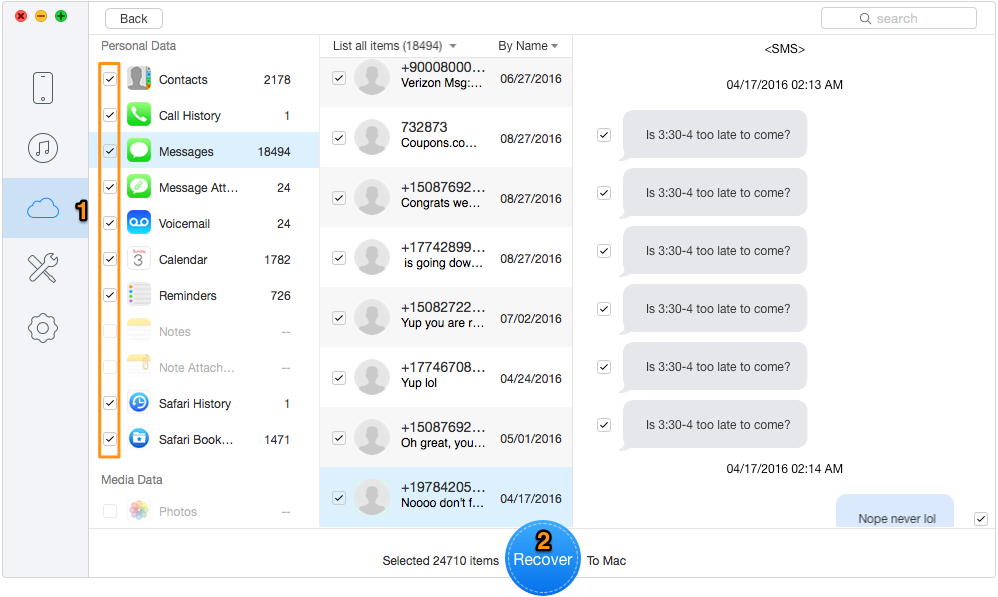 How to Restore iCloud Backup to iPhone 8 Selectively