Sunday, December 31, 2017
How To Make Galaxy S4 Look Like Galaxy S5
How To Make Galaxy S4 Look Like Galaxy S5
How to convert Samsung galaxy s4 into An S5
 |
| By Following Our tutorial you will be able to Get the blend of s5 in your s4 |
How To Make Galaxy S4 Look Like S5 - guide
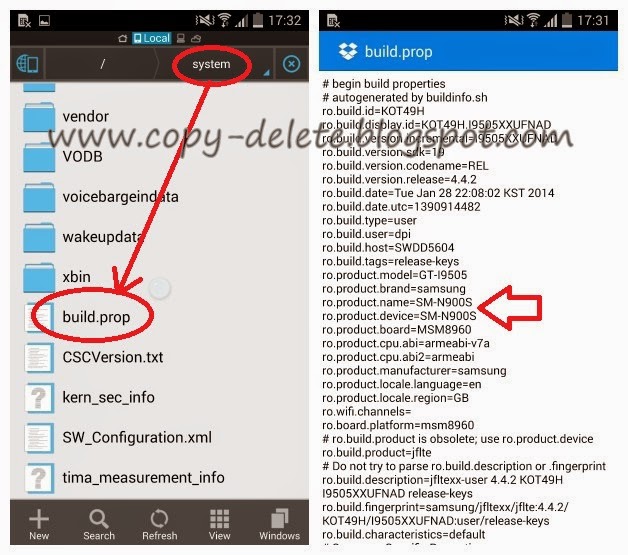 |
| How to enter in build.prop and change ro.product.name and ro.product.device |
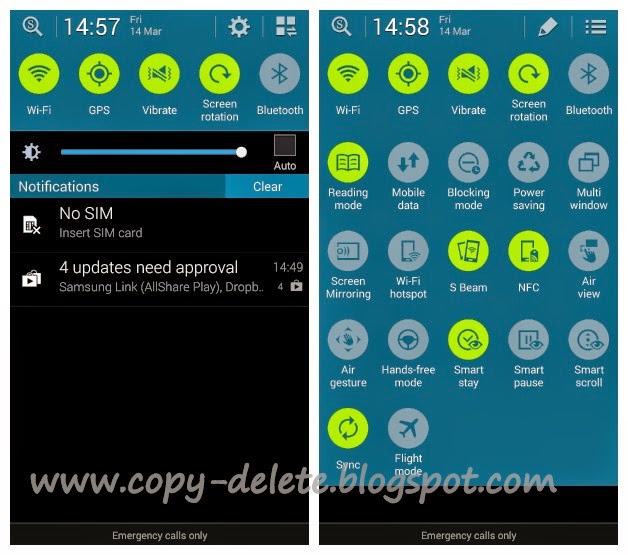 |
| After changing device name you will get new s5 icons on your galaxy s4 |
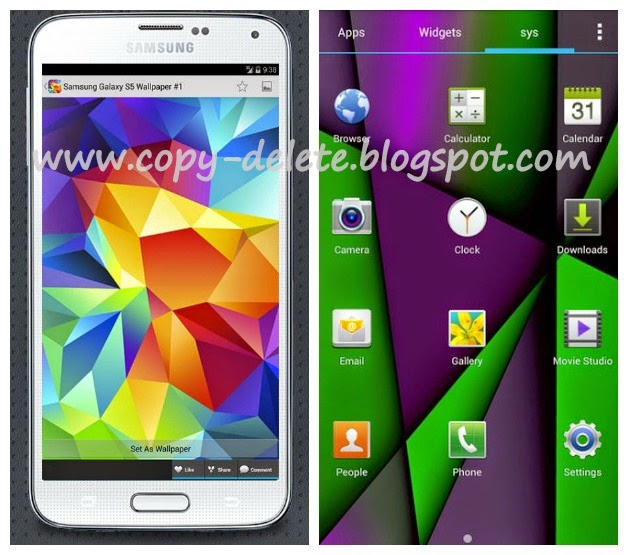 |
| A look of Galaxy S4 After using galaxy S5 wallpaper |
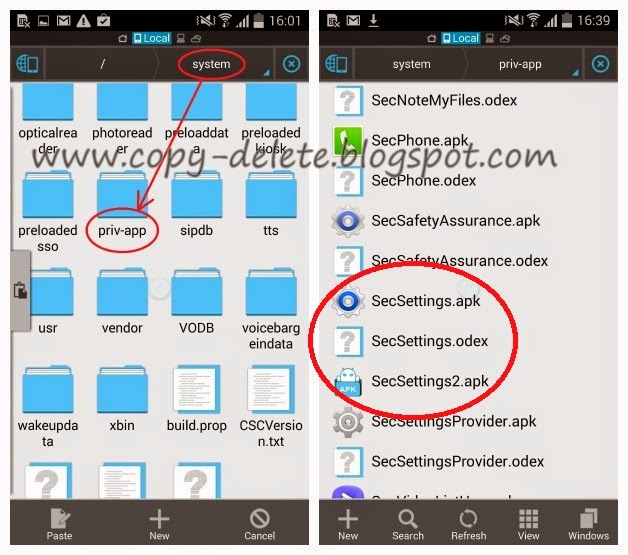 |
| place the apk in system/priv-app folder and rename it like the already present secsettings.apk |
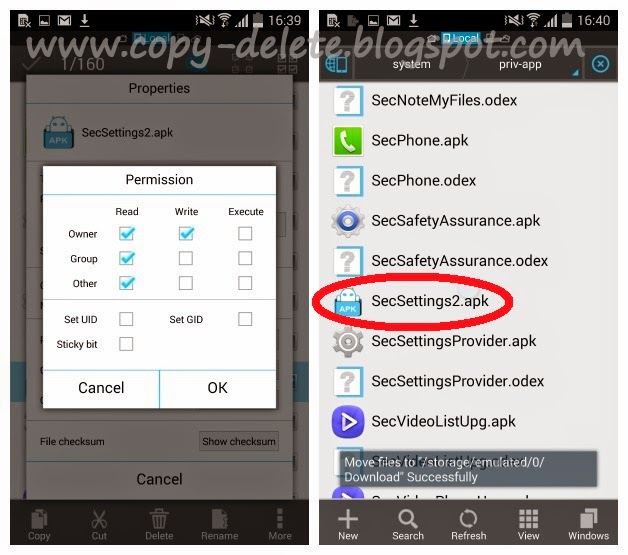 |
| Set the new apks permissions shown in left , Now remove the original secsettings.apl and odex too |
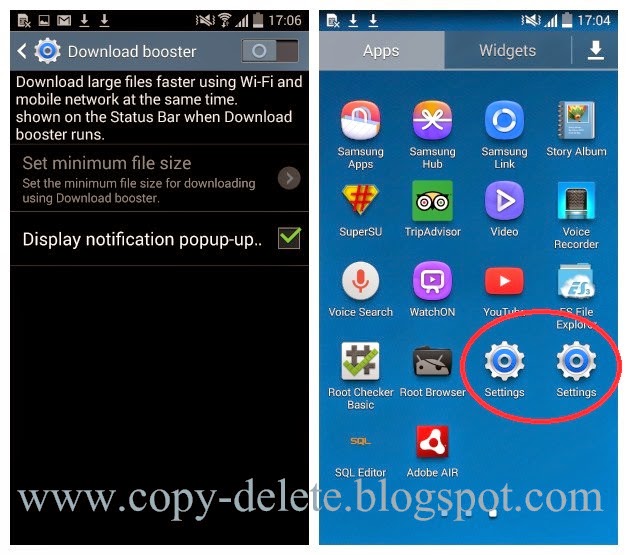 |
| Download booster (left) two settings menu present in app drawer |
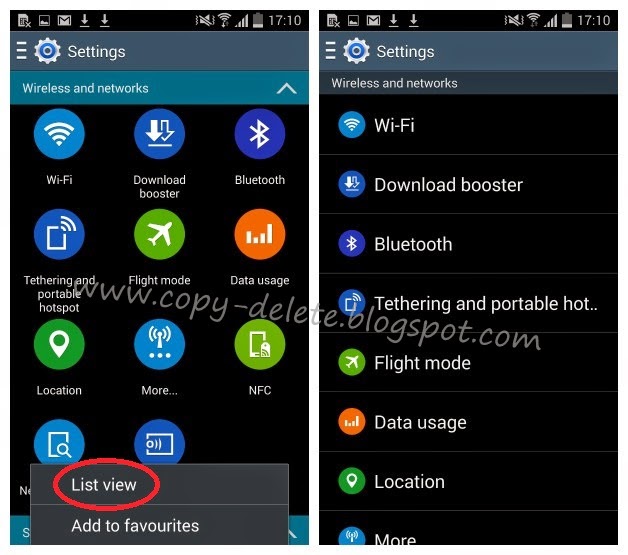 |
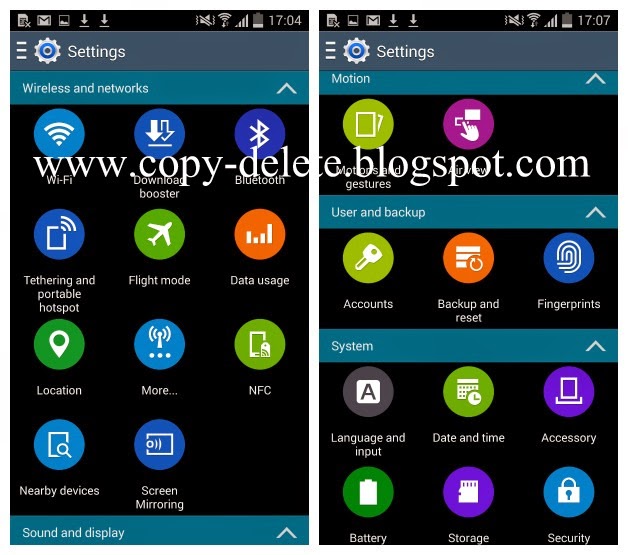
| incase if you dont like big circles settings icons you can switch to list view Just follow the above steps and make you samsung galaxy s4 look s5 without upgrading . Do you know any other way to transform galaxy s4 into a s5 please let us know |

How to make your phone look like a Pixel 2
How to make your phone look like a Pixel 2

The Pixel 2 is a distinctive phone with a distinctive home screen.
Every phone from Google debuts with a home screen that shares Googles vision of a launcher. The Google Now Launcher that shipped with the Nexus line is still one of the most popular launchers on Android, even though it was supposed to be retired over six months ago. The Pixel Launcher that ships with Googles Pixel 2 and Pixel 2 XL has not been published to Google Play for all of us to enjoy, but never fear! We can make use third-party launchers to get the same look � or even better versions of it.
First, a quick note about Lawnchair Launcher: Lawnchair can do an OG Pixel theme spectacularly. It doesnt have the dock search bar yet, but it does have Pixel folders and Adaptive icons. Adaptive icons on Pixel Launcher arent quite as good as Action Launcher or Nova Launcher, but Lawnchair is definitely the easiest way to get a Pixel theme sans dock search bar: install, open and set up your icons the way you want.
Wallpapers

Usually, when we post themes like these, we link you to a small selection of stock wallpapers from the device, and then I tell you to ditch those and go with a more fun wallpaper instead. For the Pixel theme, I dont have to do that. Googles Pixel phones use the Google Wallpapers app, and while there are still a few device exclusives, there are hundreds of wallpapers from Googles collections, Google Earth and Google+ to give your home screen a clean, crisp look. If youre looking for the rainy day wallpaper, its not in Google Wallpapers, but its been spread far and wide thanks to Redditors and Pixel fans over the last few weeks.
- Open Wallpapers.
- ?Tap the section you want a wallpaper from.
?Tap the wallpaper you want.
- ?Tap Set wallpaper.
?Tap which screens you want apply the wallpaper to.


At A Glance widget

Theres a native At a Glance widget that was recently added to Action Launcher, but the best At A Glance widget is a third-party affair called Another Widget. It allows you to change the fonts, font sizes, which calendar appointments and how many are shown at a time. Its been rapidly updating and improving, and its color-customizable, which is excellent for anyone who might want to go beyond Pixel white and get something a little bolder.
- Long press your home screen.
- ?Tap Widgets.
? Under Another Widget, press and drag Another Widget to the top of your home screen.
- ? In the configuration screen that appears, scroll down and tap See your Events.
- ?Tap Allow.
?Scroll down further and tap Control the Weather.
- ?Tap Allow.
- ?(Optional) Scroll down and tap Tap on weather opens.
Tap the weather app you want to open.


Adaptive icons

Adaptive icons are here, and no doubt they will improve, but until then, weve got a few options. If you use Action Launcher, they have AdaptivePack, an Action-exclusive icon pack that gives hundreds of popular apps Adaptive icons. Nova Launcher doesnt have an exclusive pack but instead offers a masking option that will give legacy icons colored backgrounds instead of the plain, boring white that Googles Pixel Launcher � and sadly, several Google apps � use with their Adaptive icons.
Applying Adaptive icons on Nova Launcher
- Open Nova Settings.
- ?Tap Look & feel.
?Tap Adaptive icon style.
- ?Tap the shape you want.
?Tap Reshape legacy icons if you want Nova Launcher to add adaptive shapes and colored backgrounds to apps that dont have adaptive icons.


Applying Adaptivepack on Action Launcher
- Open Action Settings.
- Tap Icon pack.
Tap Adaptivepack.
- Tap Icon appearance & App Shortcuts.
- Tap Adaptive Icon style.
- Tap the icon style you want.
- Tap OK.


Dock search bar

The Pixel 2 is a Google phone, and as a Google phone, its got a Google search bar on it. This year, as displays stretch taller and taller, Google has opted to move their search bar down to the dock, where its easier to reach and accidentally tap while reaching for one of your apps. Huzzah.
Applying a dock Quickbar in Action Launcher
- Tap Action Settings.
- Tap Quickbar.
Tap Style.
- Tap Search bar (dock).
- Tap OK.
Round the corner size to 100%.


You can long-press the items under layout to change the colors if you want. The default dock style includes colored logos, but I prefer the more subtle white icons. White goes with a wider array of wallpapers and icon packs, while the colored icons are more true to the actual Pixel 2 home screen. The Quickbar color can be any of the shades Quicktheme offers, though white is the most traditional.
Applying a dock search bar in Nova Launcher
- Open Nova Settings.
- ?Tap Dock.
?Tap Searchbar in dock.
- ?Tap Searchbar below icons or Searchbar above icons (your preference).
- ?Go to the home screen.
?Long press your new dock searchbar until a menu appears.
- ?Tap Edit.
- ?Tap the rounded bar style.
?Tap the logo style you want.
- ?Tap Bar color.
- ?Tap the color and transparency you want. White is what the Pixel Launcher uses, but colors may mesh better with your wallpapers/icons/theme.
?Tap Done.


Pixel Folders

Folders on Pixel devices havent changed from last year, which means they are nice and easy to apply. In fact, the Pixel folder style is the default on both Action Launcher and Nova Launcher for new users. If you had another style set up previously, heres how to change back to the Pixel folder style.
Applying Pixel folders in Nova Launcher
- Open Nova Settings.
- Tap Folders.
Tap Folder preview.
- Tap Grid.
- Tap Folder background.
Tap Pixel Launcher.
- Tap Background.
Select the color and transparency you desire. White is the traditional color, but feel free to pick a color to compliment your wallpaper instead.


Applying Pixel folders in Action Launcher
- Tap Action Settings.
- Tap Folders & Shutters.
Tap Style.
- Tap Adaptive if you want your folders to have the same shape as your adaptive icons. You can also select Circle if you want round folder icons even while using other adaptive icon shapes.
- If you want just the shape outline, but not a tinted background of your folder icon, you can tap the (outline) option.
Tap Folder icon background.
- Tap the color you want. White is the traditional color, but feel free to pick a color to compliment your wallpaper instead.
- Tap OK.
- Tap Folder & Shutter background.
- Tap the color and transparency you want. White is the traditional color, but feel free to pick a color to compliment your wallpaper instead.
Tap OK.


Your turn
So, how do you get your Pixel on? Are you an above the icons or below the icons dock search bar user? Do you go with adaptive icons or still rock a dedicated icon pack? Does Google Wallpapers rule your screen or do you let your fandoms fly on your desktop?
Whatever your style, share it with us in the comments below!

from Android Central - Android Forums, News, Reviews, Help and Android Wallpapers