Showing posts with label overclock. Show all posts

Saturday, December 30, 2017

How to Overclock Galaxy Pocket to Riskey Kernel 1 5 GHz

How to Overclock Galaxy Pocket to Riskey Kernel 1 5 GHz


How to Overclock Galaxy Pocket to Riskey Kernel 1.5 GHz.

NOTE: PLEASE DONT COMPLAIN IF YOU BRICK YOUR DEVICE BECAUSE OF THIS POST. DO THIS ON YOUR OWN RISK. I SUGGEST YOU ONLY DO THIS TUTORIAL ON A GALAXY POCKET DEVICE ONLY NOT ANY DEVICE.

Full Features of Riskey Kernel:
  • Add 936 MHz and 1.2GHz Frequencies
  • With BootPlash
  • Removed Smartass Governor
  • Fix Backup and restore vM00 CWM
Riskey Kernel will make your games smooth playing. You can play Inotia 4 with this Kernel.

Required Files:
  • Riskey Kernel 1.5 GHz: Download Here (Do not extract it. Put it on zip mode only.)
  • vM00 CWM: Download Here (Do not extract it. Put it on zip mode only.)
STEPS TO INSTALL:
  • Download the required files from above and put them on the root of your SD Card not on any folder.
  • Go to Recovery Mode by turning off your device and press and hold Volume Up + Home Button + Power Button all at once. You should be redirected to Recovery Mode.
  • In Recovery Mode, you can navigate by pressing Volume Up and Down. You can select by pressing the Home Button.
  • While on Recovery Mode, go to apply update from sdcard and select the downloaded vM00 CWM.zip. And you will be redirected to CWM Recovery.
  • In on CWM, Use Volume Up and Down to navigate Up and Down. Use the Home Button to select and use the soft-key Back button to go back.
  • While on CWM Recovery, go to install zip from sdcard > choose zip from sdcard > and select the downloaded Riskey Kernel.zip.
  • Wait for the installation process to complete.
  • When it is done, reboot your system.
  • When it is rebooted, download and install CPU Control from here:Download Here.
  • Open CPU Control and choose the frequency you want.
  • Thats it! Enjoy your new Kernel!
COMMENT BELOW IF THIS UPGRADE WORKED.

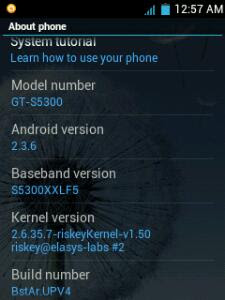
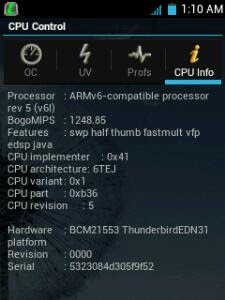
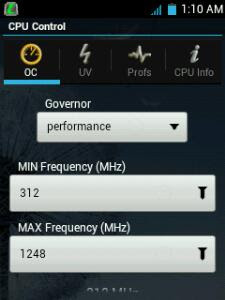
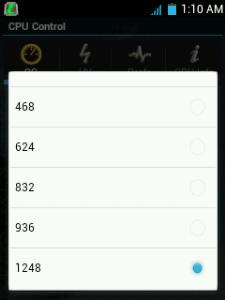
SCREENSHOTS:
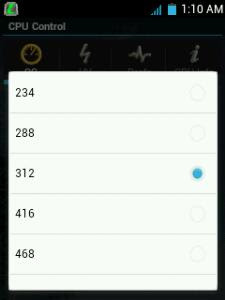


IF YOU HAVE ANY PROBLEMS, JUST COMMENT BELOW.


visit link download
Read more »

Friday, December 22, 2017

How To OverClock Samsung Galaxy Note 10 1

How To OverClock Samsung Galaxy Note 10 1


Maybe you�ve just rooted your Samsung Galaxy Note 10.1? Maybe you�re looking for some customization tools you can customize your device with? Well, then overclocking is something you should definitely try on your device. What it does is makes your CPU run faster than its predefined level that results in better performance of the device, something you don�t want to miss out. So here�s how you can go about overclocking your Samsung Galaxy Note 10.1 device:

I. Before You Begin:

1. You must have rooted your device before doing this procedure. Please head to our How to Root the Samsung Galaxy Note 10.1 procedure first and root your device.
2. You must have CWM Recovery installed on your device. If you followed our root guide above, you have it already.

II. Make a Backup:

1. Head over to the Google Play and download and install the Quick Boot app on your device.
2. Once the app�s been installed, launch it from your App Drawer.
3. Hit the Recovery option and you�ll reboot into the Recovery mode.
4. Once in Recovery, select backup and restore followed by backup.
5. It�ll create a backup of your current firmware and save it on your device.
6. You�re done!

III. Downloading Required Files:

1. Zeus Kernel 

IV. Flashing the Overclock Kernel on the Samsung Galaxy Note 10.1:

1. Download and place the Zeus Kernel zip onto your Desktop.
2. Plug in your device to your PC using the USB cable.
3. Copy the Zeus Kernel zip over to the root of your SD card.
4. Once the kernel�s been copied, unplug your device from your PC.
5. Open the Quick Boot app from your App Drawer.
6. Tap on the Recovery option and your device will reboot into the Recovery mode.
7. Once inside Recovery, select install zip from sdcard followed by choose zip from sdcard.
8. Choose the Zeus Kernel zip to be flashed on your device.
9. As soon as you select the zip, it�ll begin flashing it on your device.
10. Once the Kernel has been flashed, reboot your device.
11. You�re all done!

V. Overclocking the Samsung Galaxy Note 10.1:

1. Download and install any of these apps on your device:
SetCPU
IncrediControl
2. Once installed, open the app from your App Drawer.
3. Use the options available in the app to increase your CPU clock speed. Keep on increasing it as long as your device doesn�t crash.
4. Make sure not to select save on boot option in the app as it may crash your device.
5. Once your device becomes stable at a specific clock speed, close the app.
6. You�re all set!
Congo! Your device�s been successfully overclocked and is all ready to provide you with amazing speeds that you�ve always imagined of!

VI. Reverting Back to the Stock Kernel (Optional):

1. Open the Quick Boot app from your App Drawer.
2. Hit the Recovery option and you�ll reboot into the Recovery mode.
3. Once in Recovery, select backup and restore followed by restore.
4. Choose the backup you created in one of the earlier sections to be restored on your device.
5. It�ll start restoring the backup on your device, will take some good time to finish.
6. Once the backup�s been restored, reboot your device.
7. You�re done!
Cool! You�ve just flashed back the stock kernel with no overclocking!


visit link download
Read more »