Wednesday, January 3, 2018
How to use CrashPlan but not suffer from using so much RAM memory
How to use CrashPlan but not suffer from using so much RAM memory
I use CrashPlan to backup my data as mentioned in a previous article � it�s free for local backups and for sharing HDD space using multiple friends� HDD space. I have noticed that the RAM usage goes up in proportion to the number of files that you have selected to backup � even during the time when the backups are disabled. 
The settings to limit the time that CrashPlan does the backups can be found in the CrashPlan Desktop interface under �Settings->Backup->Between Specified Times�. I have selected From 18:00 to 08:00 and ticked each day � so that backups only happen at night daily. 
I noticed that even when the backup was disabled, the CrashPlanService was using a lot of RAM memory (over 500MB) � and I found my PC swapping to disc all the time � which was slowing my PC down � a bit of a waste! So, I found a way to create a schedule that stopped the CrashPlanService just after 08h00 and start it again just before 18h00.
Creating a scheduled task to kill the service:
Open the �Control Panel->Administrative Tools-> Task Scheduler�
Click into �Microsoft->Windows�: 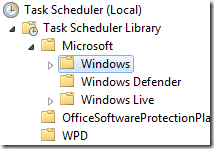


and under �Add arguments� enter: /IM CrashPlanService.exe /F 
Creating a scheduled task to start the service:
Click on �Create Task�: 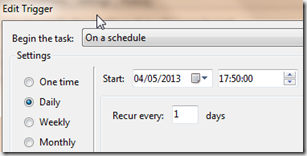
and under �Add arguments� enter: start CrashPlanService

Your tasks list should look like this:

You can test the tasks by right clicking the task and selecting �Run�:

With thanks to Scott Granneman for his blog that describes the steps to do this in Linux.

how to upgrade micromax unite2 to Official lollipop from kitkat 4 4
how to upgrade micromax unite2 to Official lollipop from kitkat 4 4
on whole YouTube... you cant found this type of easy and detailed step by step instructions video..
Video link--HERE
Achievement:- in this firmware internal app storage and sd card storage combined..so you can install upto 5 gb of apps...tried on my mmx unite2
(with video proof-
WATCH NOW
Requirements:- pc and watch video only...and run side by side...
Download.. Files-direct and fast speed links
1.) firmware-DOWNLOAD NOW
& 2.) sp flash tools+drivers-
DOWNLOAD HERE
video tutorial-how to root official lollipop:-HERE
F.A.Q
1. My phone is 4GB/8GB. Will this work for me?
Sol: Yes. This will work on both versions.
2. While updating, I got this error: "brom error: s_not_enough_memory..."
Sol: Try using different version of flash tool.
3. My phone is not detected on Flash tools.
Sol: It is because of missing of proper drivers.
follow this guide: http://thetechnolyte.blogspot.in/2014/04/installing-vcom-drivers-in-windows-81.html
4. Can I install this by CWM/TWRP/CTR etc?
Sol: No. You cant do that.
5. Do i need a valid internet connection on my pc while downloading?
Sol: No. Its not required.
6. I installed all the necessary drivers, but my phone is not getting detected.
Sol: Try changing the USB Cable, Usb port, etc.
7. Will this void my warranty?
Sol: Actually, this is an official firmware update provided by micromax. So flashing this will not void your warranty.
8. Does this require root access?
Sol: No. Its not necessary.
9. Will this delete my data?
Sol: Yes. This will delete whole data and applications from your internal storage.
10. Flashtool shows " S_INVALID_ARGUMENT (1002)"
Sol: Its because of the corrupted scatter file. You have to download the firmware again.
11.) does your phone does not installed?
sol:- install drivers properly ...
Tuesday, January 2, 2018
How to Transfer Contacts from Samsung to Galaxy C5 C7 C9
How to Transfer Contacts from Samsung to Galaxy C5 C7 C9
The C series is launched by Samsung only for the Chinese market. The three models have different sizes, all used ultra-thin metal unibody design. Different from the previous, the price of Samsung C series is more youth and has a more suitable performance for the young, those advantages let it insert into the mid market directly.

Well, have you prepare to buy a Galaxy C9? I think the first thing you want to do after buy one is transfer the contacts from your old Samsung to it. But we usually store many contacts data in our old phone, if we want to re-enter it to our new C9, it would be a very troublesome thing.
Therefore, have something can help us to do it easily?
Mobile Transfer is a useful tool for transferring data. It can transfer photos, text messages, videos, calendar and many other file types between Winphone, Android, iOS and Symbian and the data would not have any loss. Besides, Mobile Transfer can backup ? restore your data and erase your old phone.


Steps to Transfer Contacts from Samsung to Galaxy C5/C7/C9
Step 1. Launch Mobile Trans and Choose the Mode
First of all, launch Mobile Trans and it will show you a window with some modes. Select the "Phone to Phone Transfer".

Step 2. Connect your Device
Then connect your two devices to computer with USB cables. The left side should be the source phone and the destination phone is on the right side. If you want to exchange their position, just need to click "Flip" button.

Step 3. Choose the Data and Transfer them
read also: How To Update Infinix Hot 2 To Android Marshmallow 6.0
Now, choose the data you want to transfer to your new device by checking the box in front of them and then click the "Start Transfer" button. Whats more, you can check the "Clear Data before Copy" box if you want to erase the new device before transferring.

More info:
http://googledoodlenewstoday.blogspot.com /2016/07/transfer-contacts-from-android-samsung-to-c5.html">Transfer Contacts from Android Samsung to Samsung C5
http://googledoodlenewstoday.blogspot.com /2016/07/transfer-photos-videos-from-samsung-to-c5.html">How to Transfer Photos Videos from Samsung to Galaxy C5
http://googledoodlenewstoday.blogspot.com /2016/09/transfer-contacts-to-samsung-c9.html">Transfer Photos Videos from Samsung to Galaxy C9
http://googledoodlenewstoday.blogspot.com /2015/11/transfer-data-contacts-from-samsung-to-j3.html">How to Transfer Data Contacts from Samsung to Galaxy J3/J5/J7
I will do wordpress transfer from one domain to another domain
I will do wordpress transfer from one domain to another domain
Check it out! u20003 will do wordpress transfer from one domain to another ... for $5 on #Fiverr https://www.fiverr.com/s2/9918e2135e
I will do,
- transfer one host to another host.
- transfer from one domain to another domain.
- transfer from WordPress.Com to self hosted server.
No size limit for transfer (check extra gig)
- 100% Satisfaction with Express Delivery
- can also move wordpress from Non Cpanel hosting (one extra gig)
- also deliver within 12 hours (check extra gig)
- I can also move wordpress from Non Cpanel hosting.
You can ask me any questions before you order
Monday, January 1, 2018
How to Remove Advertisements from Apps Games in Asha 5XX phones
How to Remove Advertisements from Apps Games in Asha 5XX phones
 Nokia Asha OS is a much advanced version of Nokia�s Series 40 OS for feature phones. These phones are equipped with the features of smartphones at the price that fits everybody�s budget. This revolutionary move by Nokia started with the launch of Asha 501 and now has 5 variants in this row. Tons of apps are available for this platform in Nokia Store. Nokia is providing a huge opportunity for developers to reach the world. Store has a wide reach all over the world and helps developers to attain downloads for their products. There are mainly three methods for developers to earn,
- 1. A paid app
- 2. A free app with in-app payment
- 3. A free app
So this is a tutorial to remove the Advertisements and skip to the game directly. This can be done in three easy steps, completely in the mobile itself. I strongly recommend you to use use UC Browser (Download) for this.

[ Know how to create a WiFi hotspot at home and take Free WiFi in your Asha 5XX ]
Steps for removing Ads. from Apps/Games
First and foremost, create a new folder in your memory card, say My Folder.(If you are in UC Browser now, you can create a New Folder without closing it.
 . In the �Download Notice� page press SAVE and save it to My Folder. Now you have downloaded the JAD file of the Game and it will be downloaded as �AngryBirds_240x320_jad�. Now close the tab.


 !!
!!
How To Install Uninstall Play Store From Nokia X X XL Without Rooting In Simple Easy Way
How To Install Uninstall Play Store From Nokia X X XL Without Rooting In Simple Easy Way

Earlier I have posted the tutorial to root Nokia X, X+ & XL with play store .In this thread I am going to show you how to install Google Play store without rooting your Nokia X, X+ AND XL.
- Enable USB Debugging mode
- Launch device settings.
- Tap Developer options
- Enable USB debugging in the Debugging section (Make sure USB debugging is checked)
.png)
.png)
.png)
.png)
.png)
.png)
.png)
.png)
.png)
.png)
.png)
.png)


Sunday, December 31, 2017
iLogic Batch Output PDFs from an Assembly File
iLogic Batch Output PDFs from an Assembly File
Issue:
Youd like to output a PDF file from the drawings of all the components found in an assembly file (if those components have a drawing file created), and you like also create a PDF of the top level assembly drawing as well. All of these PDFs should be written out to a single folder. Can this be done?

Heres an ilogic rule to batch output PDF files for each component in an assembly. This rule assumes that the component drawings share the same name and location of the component.
For example: C:Tempwidget-450.ipt has a drawing: C:Tempwidget-450.idw
If the drawing file is not found, then it simply moves on and looks at the next component.
This rule may not work for everyone, but it should provide a starting point from which it can be modified as needed. If you work with *.dwg files rather than *.idw files you can search and replace this code for idw and replace with dwg.
Here is the code in a *.txt file that can be downloaded as well:
http://forums.autodesk.com/autodesk/attachments/autodesk/78/455124/2/Batch%20PDFs.txt
How to save your eyes from computer
How to save your eyes from computer

Now-a-days we have a tendency to all like Robots,we cant live our lives without computers & those peoples like ME uses connection affiliation pay all the day by surfing Facebook,chat & several social networking sites,but we do not recognize,we are hurting ourselves.We are spoiling our eyes day by day by sitting in front of Computers.Do you cherished to spend over three hours in-front of laptop daily? Then its time to be alert ,because your eyes area unit in a very significant risk !Im not telling this to afraid you.Its true and medically proved.Then what should we do? Leave Computers? No way, if we leave Computers then the world will be stopped,well use laptop/pc with safety , theres a valuable line in English, ""Do it,before Its too late "", it is time to awaken Friends.Lets come back to the purpose ,Im sharing an Application,whichll be helpful to avoid wasting your valuable eyes,Its not pretend,Its true and extremely helpful .Its easy and easy to use,Flux is an auto adjustable software system by time,Im also using this.And be careful with your Eyes...
How to Remove System Applications or Bloatwares from your Android Device
How to Remove System Applications or Bloatwares from your Android Device
How to Remove System Applications or Bloatwares from your Android Device
Follow the below procedures to successfully uninstall these unfavorable apps .
CLICK HERE TO DOWNLOAD REQUIRED FILES
How To Recover Data From Crashed Operating System
How To Recover Data From Crashed Operating System
How To Recover Data From Crashed Operating System
Steps To Recover Data From Corrupted OS:
- First of all download the Windows 7 USB/DVD Download Tool. This tool is available for free of cost by Micosoft Corporation.
- Don�t worry with software�s title thats is Windows 7. But this software works perfectly fine with Windows 7,8 or 8.1 and windows 10.
- Now you have to install the downloaded software. After installing it now you have to run it.

- Now in the opened window as shown below click on browse. Now locate the path ofWindows ISO file and select it then click on next button.
- Now in the next opened window you have to click on USB device because we are making bootable USB/Pendrive.
- The next thing is that you have to select the pendrive which you want to make bootable. Make sure that the your pendrive is empty. if not so then don�t worry a pop up will opens saying to erase data on your selected USB.

- Now the only thing is need to is just to copy windows files to do so you have to just click on Begin Copying. It takes around 20-25 minutes depending upon your system to make bootable USB. Lastly when you see the message �Bootable USB Device created successfully�.
- Now boot this Windows USB in your computer and there open recover option and browse there and move your important data in your pendrive.
How to not receive email from Flipkart
How to not receive email from Flipkart
Is your mailbox is flooding with flipkart promotional emails? Do you not want recieve emails from flipkart? Go through this article to get to know about stopping notifiaction emails from flipkart.
- Flipkart is an online ecommerce site helping many people to buy things they want, it has made good name among all the other ecommerce site.
- As other website send promotional emails, flipkart is not exceptional from that. It too send mails to remind the users about the offers and discounts.If you wish to not recieve mails from flipkart, you will not get the promotional mails.
- Once you register to flipkart, you will be receiving the mails from flipkart like festival offers, end sales, special offers...etc.
- Sometimes it is not required us to recieve notifications from flipkart, then we can unsubscribe from it.
How to not receive email from flipkart
It is very simple process to stop notification from flipkart, follow the steps
- Just open any of the flipkart email on your mailbox(gmail, outlook, yahoo...etc).
- Scroll down till you see the below text " We hope you enjoy receiving our news and special offer emails from Flipkart.com, but if you would prefer not to receive these emails please click unsubscribe"
- And click the unsubscribe link, thtas it.you will no longer recieve mails from flipkart.
- You will recieve only mails from flipkart about your products which you buy from it.