Showing posts with label drawings. Show all posts
Showing posts with label drawings. Show all posts
Sunday, December 31, 2017
How to publish multiple drawings
How to publish multiple drawings
How to publish or plot multiple drawings.
You can publish or plot multiple drawing by using the AutoCad function Batch Plot
1. Select the AutoCad function �Batch Plot�. The window will automatically load all open drawings.
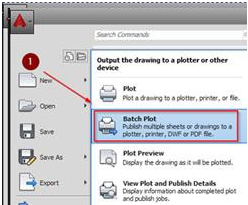
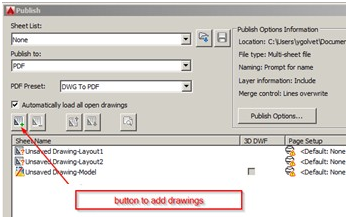
2. To remove drawings from the list use this button.

3. To add drawings to the list use this button (plus sign in green color).
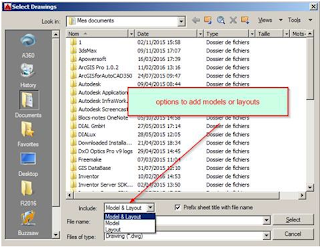
4. Select the drawings by model, lay-out or both.
5. Check the settings and the page setup before publish/plotting.
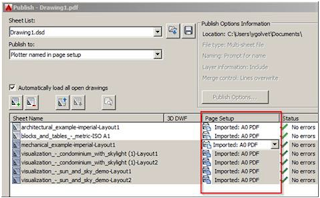
6. When the drawing already has a page setup select the page setup and you can a preview of the drawing.
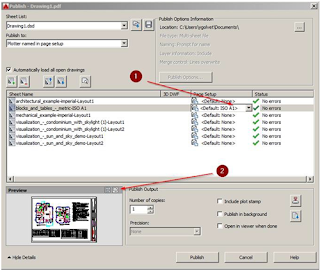
7. If the drawing don�t have a page setup you have to import a page setup before publishing:
- You can select all the sheet (use CTRL+A)
- You can import settings with DWG, DWT or DXF

Saturday, December 9, 2017
How To Get Your AutoCAD Drawings Right Away
How To Get Your AutoCAD Drawings Right Away
You are working with AutoCAD. Or any CAD program. You know how it is. It takes a lot of time before your drawing has been created.Something Completely Different
And then. After your drawing has been created. You cannot use it right away. The drawing must be checked. And that takes time too.
Big Disadvantage
Waiting for your CAD drawing before it is finished. And then the time that checking takes. That is a big disadvantage.
Is that how it always is? Is there no way that the waiting can be avoided? Is there a quicker way of getting your CAD drawing?
A Quicker Way
There is a quicker way. There is no need for waiting for hours before your CAD drawing is finished and checked.
Get an AutoLISP program. An AutoLISP program can create parts of your CAD drawing. It can even create complete CAD drawings.
If the AutoLISP program is creating parts of your CAD drawing, you are saving a lot of time. The CAD operator is quicker.
The AutoLISP program creating a complete CAD drawing. That is even better. You get your CAD drawing in less than five seconds.
And working with the CAD program is very easy. Anybody can work with the CAD program. Even non CAD operators.
CAD Operators
Im not saying that you must do that. Im not saying to get rid of all your CAD operators. But maybe you can do with less of them.
I think. Even if you are working with a lot of CAD programs. You still need CAD operators. Not everything is done automatically.
The Point
That is the point of this post. There is no need for waiting for hours before your CAD drawing is finished. You can save a lot of time.
Here is something completely different from what you normally read in this blog. It is an imagination.
Imagine this. One day you wake up and you are a millionaire! Look at how different your life will be:
- You no longer have to worry about your debts, bills, and slaving for money.
- You can spend your time doing things you love, spend your time with your beloved family and friends.
- You no longer have to worry about money or have to be poor again. Never again living the life you used to have.
Do you want to be a millionaire? Make your dream lifestyle came true. Heres your chance to be a millionaire. Check this out.
Wake Up Millionaire:
http://l1nk.com/rfbzla
To Your Success
Free AutoLISP Course
Sorry. This offer is only for my readers from Malaysia. I want to give an AutoLISP course to them. Free of charge.
I have more than 900 readers. The majority of them is from the USA. More than 500. But I also have readers from Malaysia. About 120.
I dont know what my readers from Malaysia are doing. Are they with an engineering firm or architecture? Or just interested in AutoLISP?
I offer them a free AutoLISP course. It works like this. You let me know if interested and Ill come to your place.
I will give the AutoLISP course at your office. Your people can attend the AutoLISP course. The course consist of 15 lessons.
The first ten lessons are about AutoLISP. All the functions of AutoLISP are explained and there is talked about the system variables.
During the last five lessons we are going to write an AutoLISP program. The people attending the course come with a wish.
That is why this offer is only for my readers from Malaysia. I live in Malaysia. And I do not see how I could travel abroad.
The AutoLISP course is completely free. I will not charge you for the course. But I will ask you to refund my travel expenses.
The people attending the course will get an e-book about AutoLISP. The e-book is a PDF file. What is said in the course, can be found in the book.
Friday, December 1, 2017
How to protect users from saving password protected DWG drawings
How to protect users from saving password protected DWG drawings
You can disable Security functions during custom installation of AutoCAD.
In an already installed AutoCAD-based application, you can disable passwords using a registry setting.
Use Regedit to open the key:
HKEY_LOCAL_MACHINESOFTWAREAutodeskAutoCADRxx.xACAD-xxxx:xxxApplicationsAcSecOpt
and set the AllowEncryption value to 0. You can change the value even when AutoCAD is running. You can force the change using Windows group policy.
In an already installed AutoCAD-based application, you can disable passwords using a registry setting.
Use Regedit to open the key:
HKEY_LOCAL_MACHINESOFTWAREAutodeskAutoCADRxx.xACAD-xxxx:xxxApplicationsAcSecOpt
and set the AllowEncryption value to 0. You can change the value even when AutoCAD is running. You can force the change using Windows group policy.
Subscribe to:
Comments (Atom)