Showing posts with label express. Show all posts
Showing posts with label express. Show all posts
Friday, December 29, 2017
How To Update Samsung I8730 Galaxy Express Firmware Version Manually
How To Update Samsung I8730 Galaxy Express Firmware Version Manually
In this Guide we will work together to update the Firmware version of Samsung Galaxy Express I8730 manually, And by manually we mean by using Odin flasher and a firmware update package. This process is very useful when you cannt update the phones firmware online for any reason.
We advise you to make a backup of your phones data before starting the work, To save your important stuff from being lost after updating your mobile phone, Also make sure to fully charge the phones battery.
We advise you to make a backup of your phones data before starting the work, To save your important stuff from being lost after updating your mobile phone, Also make sure to fully charge the phones battery.
Downloads:
- Samsung I8730 Official Firmware Package.
- Odin Flasher.
- USB drivers for Samsung I8730.
Tools:
- Odin Flasher.
- USB drivers for Samsung I8730.
Tools:
- Suitable USB cable for Samsung I8730.
- A computer with Windows OS installed.
Preparation:
- A computer with Windows OS installed.
Preparation:
After you download the needed files you should extract the zipped ones, Also you must install the USB drivers and after that restart your computer.
Samsung I8730 Galaxy Express Firmware Update Steps:
- After you turn off your Samsung I8730 take out its SIM-card and memory card too.
- Run Odin.exe program (Double click on it).
- Check the following options only: Auto Reboot, F.Reset Time
- As we will use one file update package then you will select it as PDA file.
- Click on PDA button to select:
I8730XXAMB8_I8730OXAXAMB8_I8730XXAMB8_HOME.tar.md5
- Your Samsung I8730 must be in Download Mode before connecting it to your PC.
I8730XXAMB8_I8730OXAXAMB8_I8730XXAMB8_HOME.tar.md5
- Your Samsung I8730 must be in Download Mode before connecting it to your PC.
- Press and hold Volume Down key + Home key, And press Power key until you get the warning message on screen, Now release all keys and press Volume Up key to confirm.
- Use the USB cable to connect your Samsung I8730 to the computer.
- Wait for the USB drivers installing.
- If Odin program detects The COM port number of your device 0:[COMxx], Then all is ok.
- Click on Start button.
- Odin program will start to update your Samsung I8730 using the selected firmware file.
- After finishing his job, Odin will reboot your smartphone.
- At this step you can unplug the USB cable from your phone.
- When your Samsung I8730 is fully on enter this code *2767*3855#
- The phone will restart one more time, That is normal so wait for it.
- Now when your Samsung I8730 is on again it will be ready for using with its new installed firmware.
Recommended Services:
- In case you have a locked Samsung I8730 Galaxy Express, And you need to Unlock it, Then please take some minutes and check these online Unlock Servers: Online Unlock Server 1 - Online Unlock Server 2.

Wednesday, December 27, 2017
How to Install Flash Firmware in Nokia 5800 Express Music
How to Install Flash Firmware in Nokia 5800 Express Music

The Procedure
You need these tools. So download them:
- Nokia Ovi Suite
- Navifirm
- JAF tool and Pkey (Nokia Flash Tools.rar)
- Dot Net framework (at least version 2 for WinXP user)
Install Nokia Ovi Suite & Backup Your Phone
Install Nokia Ovi Suite and back up your phone especially your contacts, message etc. In fact, just backup everything because prior to flashing your phone, we need to hard reset it and format your phone memory card to avoid any potential error later on. Hard reset will erase all your contacts, message, phone setting etc. So back them up using Nokia Ovi Suite.
Even if you don�t want to back up your phone, it is essential to install Nokia Ovi Suite for the driver purpose. Otherwise, JAF tool can�t see your mobile phone at later stage.
Return Your Phone Software to Its Original State
Format your phone memory card. You can do this using your phone or using a memory card reader. I personally prefer to format my memory card using my own phone. Go to : File Manager / E: Memory Card / Click on Options button / Memory card option / Format.
Next, hard reset your phone. You may achieve this using 2 methods: The first one is type *#7370# (the default security code is 12345) but I prefer the below method (bypass security code):
- Turn the phone off
- Press and hold 3 keys (green + red + camera) together.
- Without releasing these keys, turn the phone on.
- Keep holding these 3 keys until the screen show Nokia�s standard hand shake animation.
- Release these 3 keys. Your phone will execute hard reset process.
Okay, now your phone software is good as new.
Download Your Phone Original Firmware
Now we need to download your phone�s original firmware using NAVIFIRM. Originally, we flash our phone using Ovi Suite or PC Suite right. This suite automatically detects our phone hardware and software then downloads and installs the relevant firmware for our phone automagically. However, for this one we need to manually select and download the right firmware for our phone.
Extract and run NAVIFIRM. Mine is as shown below.

Choose your phone model correctly. As we can see here, there are 3 variant of Nokia 5800XM. The RM-356, RM-427 and RM-428. Different model number use different kind of hardware. So, do not download firmware for RM-427 or RM-428 if your phone model is RM-356. You can check your phone model by typing *#0000#. Look for Type.
�Release�s is firmware version. Ensure that the firmware you are going to flash into your phone (the one you are about to download using NAVIFIRM now) is newer (or at least has same version number) than the one that already in your phone. Downgrading firmware will definitely brick your phone. You may check with your phone firmware by typing *#0000# too. As for my case, my current phone firmware is 51.0.6. So, I have to download �releases� version 51.0.6 or later (in this case, 51.0.6 is the latest one).
Next, choose your phone variant. My Nokia 5800XM is for Malaysian market and has �red lining�. Therefore I chose�APAC1 RED MALAYSIA (0570196)�. If you are not from Malaysia, for example Indonesia and your phone has blue lining, you may want to choose �APAC1 Indonesia BLUE (0559960)� variant.
Finally for the files section. Just tick them all. And press �Download from FiRe� button. Save the files into �Your phone model number� folder. As for my case, I save them into a folder name RM-356 on my Desktop.
Download the Custom Firmware
There are so many CFWs for Nokia 5800XM out there. To say CFW A is better than CFW B and vice versa is not entirely correct. Different CFW has different goal. Some CFW is more features and function oriented thus this firmware is kinda bloated for some perspective. Some CFW is more speed and performance oriented. So this firmware may be seem too bare for somebody else. In fact, some firmware might be tweaked to the extreme where battery life is no longer a primary concern. Therefore, it is up to you to choose the right firmware for your mobile phone.http://forum.dailymobile.se/index.php?board=84.0 is a good place to start to find the right firmware for your taste.
As for this tutorial, I use Xtension^10 CFW variant 2. You may get it athttp://forum.dailymobile.se/index.php/topic,22786.0.html . I personally prefer this extension due to its performance oriented but not too minimalistic. Having 82 MB free RAMs is a very good thing too. Furthermore, Xtension^10 is based on firmware version 51.0.006. Other Xtension CFWs are based on previous version of Nokia firmware. As we can�t downgrade the phone firmware, it is really important for you to pay special attention here. Do not download CFW that is based on firmware that is older than your current phone firmware and most importantly, the CFW must be based on the firmware version that you previously download using NAVIFIRM. In other word, if you download original firmware version 51 (NAVIFIRM), do not download and use CFW that is based on version 50, 40 or older.
You may download Xtension^10 Variant-2 at http://forum.dailymobile.se/index.php?topic=22786.msg232730#msg232730 .
Mix Up Custom Firmware with Original Firmware
Custom Firmware doesn�t provide every single file that is needed for your phone. That is why we need to download original firmware using NAVIFIRM before. Same goes to Xtension^10 variant-2. It just provides Rofs2 and Rofs3 files only. So, extract the �ENGLISH ONLY Xtension (rofs2+uda).rar� and �Xtension_10v2.rofs3.rar� into a folder as below.

Then, open up the original firmware folder (the RM-356). Most likely, the files will look like the screenshot below but this is not a must. Different firmware version for different phone model may have different file names.

What we need to do now is change the CFW files name (from Extracted folder) according to your original firmware files name (from RM-356 folder). So as for my case, I need to change �General.uda.fpsx� to be �RM-356_51.0.006_026_000_U01.uda.fpsx�. Err..how do I know? Well, in RM-356 folder, there is only 1 file that end with .uda.fpsx right. In short, the files that I change is as listed below:
- General.uda.fpsx ===> RM-356_51.0.006_026_000_U01.uda.fpsx
- ENGLISHONLY.rofs2.V01 ===> RM-356_51.0.006_prd.rofs2.V22
- Wave1.Xtension^10v2.rofs3.fpsx ===> RM-356_51.0.006_C01_prd.rofs3.fpsx
The next step is, copy these three files that we already change its name into RM-356 folder (folder that contains original firmware files) and overwrite the original files. The idea is, we want to mix up original firmware�s files with custom firmware�s files. The reason is, custom firmware doesn�t provide every single file that is needed for your phone operating system. The author only supplies 2 or 3 files that he/she modifies. So it is up to us to prepare the additional files that are needed by our phone. That explain why we need to download the original firmware using NAVIFIRM previously.
So, once the 3 original files are overwrote by the custom firmware�s files (that we already change their name), our complete CFW is ready to be transferred into your Nokia 5800XM. Copy the whole folder (RM-356) into �C:Program FilesNokiaPheonixProducts� directory. Or if you are using 64 bit operating system, copy the whole (RM-356) folder into �C:Program Files (x86)Nokiaphoenixproducts�. Refer screenshot below (omit the RM356-0570196� folder, it was automatically created by JAF when I did flash my phone previously).

Please note that the folder (that store our complete CFW) in �phoenixproducts�needs to be named exactly as your phone�s model number. As for my case, my 5800XM�s model number is RM-356. That explains why I use folder nameRM-356.
And for those who are already panic because they can�t find any phoenix folder in Nokia directory�don�t be. By default, there is none. I manually create the �phoenix� folder and �product� folder.
Preparing JAF Tools
JAF Tools is the software that we will use to transfer your complete CFW into your mobile phone. So, follow the steps below to prepare it. It consist of JAF installation and copy paste 2 files (ini file and PKEY emulator) into JAF installed directory.
Extract �Nokia Flash Tools.rar� (the one you download for JAF and PKey). You will find �JAFSetup_198.62.rar� file, �OGM_JAF_PKEY_Emulator_v 5.rar� and �(.INI FILE)(jaf_nok4models).rar� file. Extract all the 3 files.
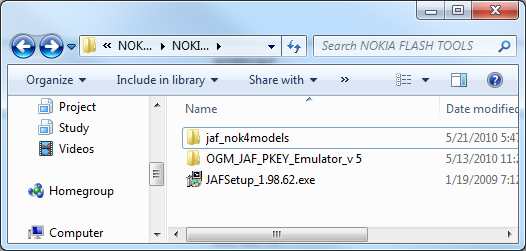
Install �JAFSetup_1.98.62.exe� at its default location.
Copy �Jaf_nok4models.ini� and �OGM_JAF_PKEY_Emulator_v 5.exe� into �C:Program FilesODEONJAF� or �C:Program Files (x86)ODEONJAF� if you are using 64 bit operating system.

Then, make a shortcut for �OGM_JAF_PKEY_Emulator_v 5.exe� emulator to your desktop for easy access later on.
Transferring Complete CFW into your 5800XM phone.
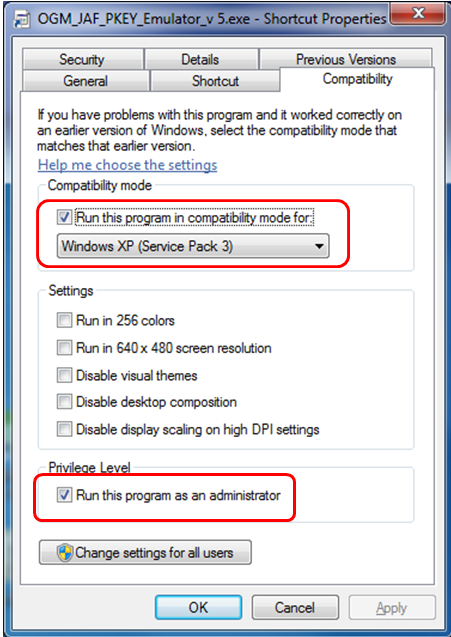
If you happen to use Windows Vista or Windows 7 (32 bit or 64bit), you have to change JAF PKey Emulator�s compatibility first. Right click on the JAF Pkey Emulator and choose properties. Click on Compatibility tab and set compatibility mode to Windows XP (Service Pack 3) and set privilege level as Run this program as an administrator as shown in the screenshot below:
Run the JAF Pkey Tool from your desktop.

Ensure the setting as in the screenshot above. Then click GO.
An error box will appear. Don�t worry, just click OK button.

Then, JAF will start. Click on BB5 tab.
Read more »

Subscribe to:
Comments (Atom)